# Extension System & Marketplace

Install Nimbalyst extensions from a live marketplace registry, build your own extensions to Nimbalyst with a hardened extension SDK. See all the extensions below and make your own.

## What Are Extensions?

Extensions are add-ons that give Nimbalyst new capabilities. Each extension can add custom editors for new file types, AI tools that let Claude interact with your content, sidebar panels, themes, keyboard shortcuts, and more.

Extensions work seamlessly alongside Nimbalyst's built-in editors. When you open a file, Nimbalyst checks if any extension handles that file type and loads the right editor automatically. Extensions have full access to Nimbalyst's theming system, so they always match your current look and feel.

## Extensions in the Marketplace

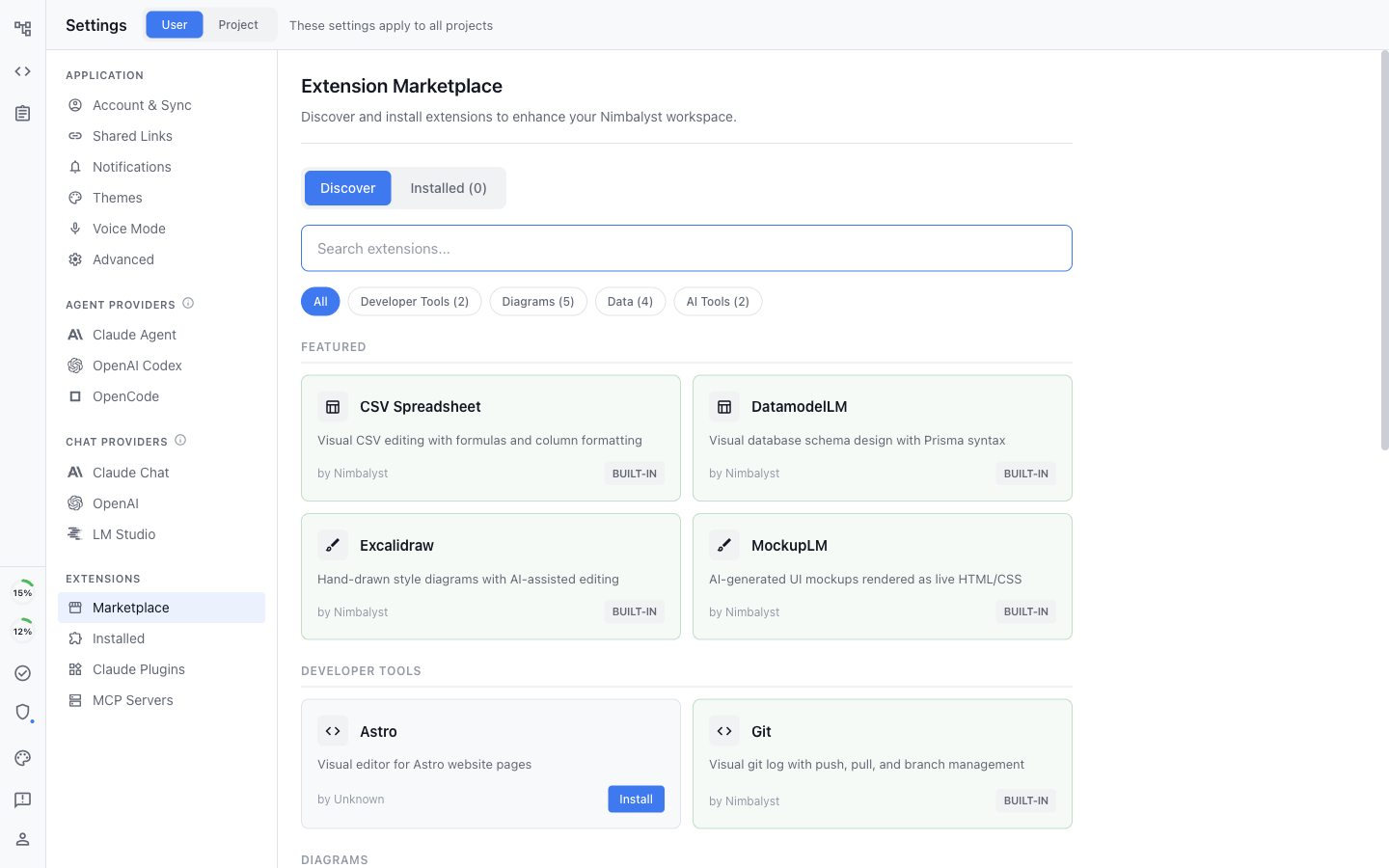
Go to **User Settings > Marketplace** to browse and install extensions.

<figure><img src="/files/AZxQKLxo2KfFFWJhJlFp" alt="Extension Marketplace showing featured extensions and category filters"><figcaption><p>The Extension Marketplace in Settings, showing featured extensions, search, and category filters</p></figcaption></figure>

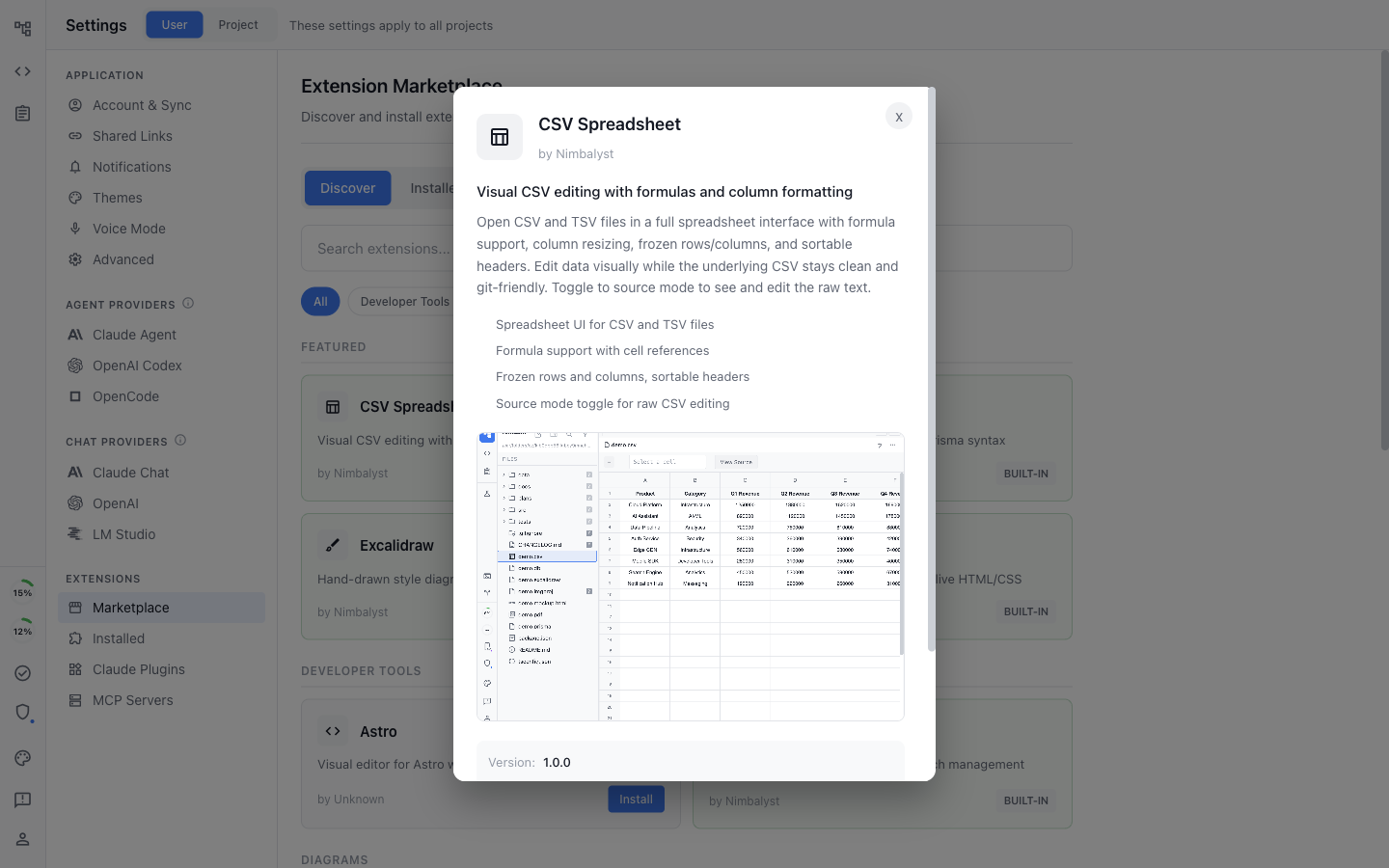
Click any extension card to see its full details, screenshots, permissions, and install button.

<figure><img src="/files/32vwhQ1dXNmWCrRVJ0zy" alt="Extension detail modal showing description, screenshots, and install button"><figcaption><p>Extension detail view with description, highlights, screenshots, and install controls</p></figcaption></figure>

### Available Extensions

| Extension                       | Description                                                                                                                               |
| ------------------------------- | ----------------------------------------------------------------------------------------------------------------------------------------- |
| **Astro**                       | Visual editor for Astro website pages                                                                                                     |
| **Git**                         | Visual git log with push, pull, and branch management                                                                                     |
| **Nimbalyst Mindmap**           | Freeform spatial mindmap editor with AI-assisted editing                                                                                  |
| **Nimbalyst Slides**            | Presentation editor with live reveal.js preview                                                                                           |
| **3D Object Editor**            | Design and edit 3D objects with AI assistance                                                                                             |
| **PDF Viewer**                  | View PDF documents directly in the editor                                                                                                 |
| **SQLite Browser**              | Browse and query SQLite databases with AI assistance                                                                                      |
| **Image Generation**            | Generate images from text prompts with multiple style options                                                                             |
| **Namenym**                     | AI-powered brand naming and domain brainstorming                                                                                          |
| **JSON/YAML Visual Editor**     | Interactive tree-view editor with schema validation, search, and AI-powered transformations                                               |
| **Mermaid WYSIWYG Editor**      | Drag-and-drop visual editing of Mermaid diagrams with bidirectional code/canvas sync and AI generation from descriptions                  |
| **Wiki Links & Backlinks**      | `[[wiki-style]]` linking between documents with a backlinks panel and AI link suggestions                                                 |
| **CI/CD Pipeline Editor**       | Visual editor for GitHub Actions, CircleCI, and GitLab CI workflows with AI-assisted configuration (beta)                                 |
| **Slide Deck Presenter**        | Create and present markdown-driven slide decks with speaker notes, transitions, and themes                                                |
| **Session Analytics Dashboard** | Visualize AI session patterns, token usage, cost tracking, and productivity metrics                                                       |
| **Astro Framework**             | Full-stack Astro development with component previews, island architecture visualization, content collection editing, and deployment tools |

### Managing Installed Extensions

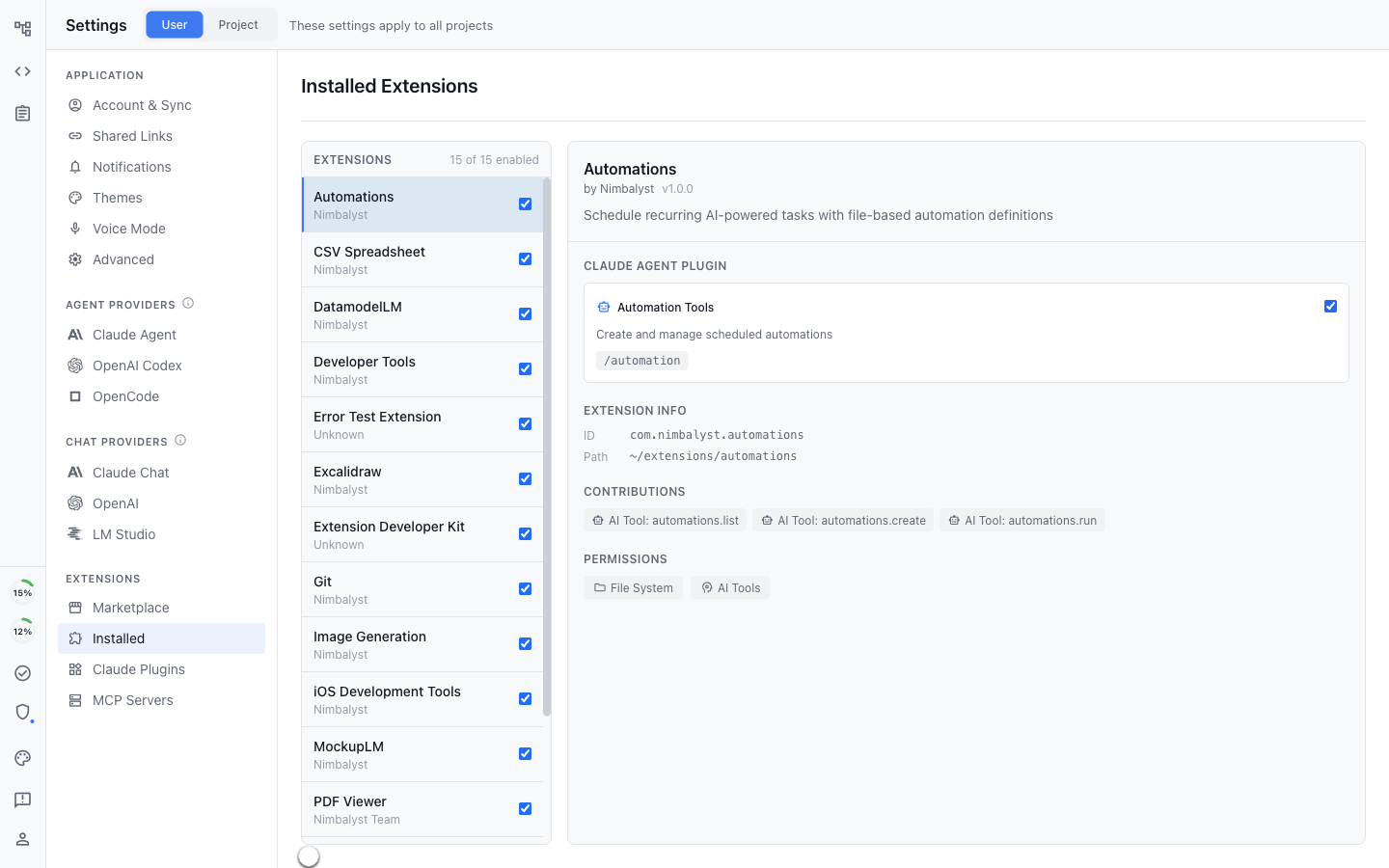
View all installed extensions under **Settings > Extensions**. This is the single panel for everything you have installed — marketplace, GitHub, local dev, and built-in extensions all show up here, each with a colored source pill so you can tell them apart at a glance.

<figure><img src="/files/5zf0nztGAfSrYotGVxgs" alt="Installed Extensions panel showing all active extensions with details"><figcaption><p>The Installed Extensions panel shows every active extension, its permissions, and contributed AI tools</p></figcaption></figure>

Each row has an enable toggle and an indicator if an update is available. Click an extension to open the detail pane, which includes its AI tools, permissions, file path, and **Update**, **Repository**, **Reveal**, and **Uninstall** actions.

The Marketplace itself is now Discover-only. When updates are available, an "Installed (N) — M updates" link at the top of Marketplace takes you to the Extensions panel.

### Themes from Extensions

Extensions can ship themes. Any theme contributed by an installed extension shows up under **Settings → Themes** in an **Extension Themes** group, and in the gutter theme popup, alongside the built-in themes. Pick one and Nimbalyst applies it just like a first-party theme.

If you later disable or uninstall the extension that provided the active theme, Nimbalyst falls back gracefully so your workspace stays usable.

### Installing from GitHub

At the bottom of the Marketplace discover page, you can paste a GitHub repository URL to install any extension directly from source. The repository must contain a valid `manifest.json` file.

## Build Your Own Extensions

Extensions are self-contained packages that declare their file types, editors, and UI contributions via a manifest. You can build extensions that do everything the built-in ones do.

**What you can build:**

* **Custom editors** for any file type (spreadsheets, diagrams, visual tools)
* **AI tools** that Claude can use to read and modify your editor's content
* **Panels** for sidebar views, fullscreen modes, or floating windows
* **Themes, slash commands, file icons, and new file templates**

**How development works:**

* The **Extension Dev Kit** (bundled with Nimbalyst) scaffolds a new extension project with a starter template, hot reload, and MCP tools for build/install/reload from inside Nimbalyst
* Editors integrate through the **EditorHost contract** (load/save, dirty state, theme, external change handling) so custom editors behave exactly like first-party ones
* Use the full **Extension SDK** -- clipboard, screenshot export, AI and network permissions, and access to the same MCP tooling that first-party extensions use

For full technical documentation on building extensions, see [Building Your Own Extensions](/extensions/building-extensions.md).


---

# Agent Instructions: Querying This Documentation

If you need additional information that is not directly available in this page, you can query the documentation dynamically by asking a question.

Perform an HTTP GET request on the current page URL with the `ask` query parameter:

```
GET https://docs.nimbalyst.com/extensions/extension-system-and-marketplace.md?ask=<question>
```

The question should be specific, self-contained, and written in natural language.
The response will contain a direct answer to the question and relevant excerpts and sources from the documentation.

Use this mechanism when the answer is not explicitly present in the current page, you need clarification or additional context, or you want to retrieve related documentation sections.