# File Edits Sidebar

The File Edits Sidebar tracks every file that the AI interacts with during a session. It provides visibility into which files have been modified, referenced, or read and those that need review.

<figure><img src="/files/JhWni8qOoBZQIyXqiIl3" alt=""><figcaption></figcaption></figure>

* Every file the AI edited appears in the sidebar list
* Click a file to jump directly to the AI session that made the edit
* See how many changes are in each file and navigate between them
* **All Uncommitted Files** mode shows files with pending changes across your project

### Diff Peek

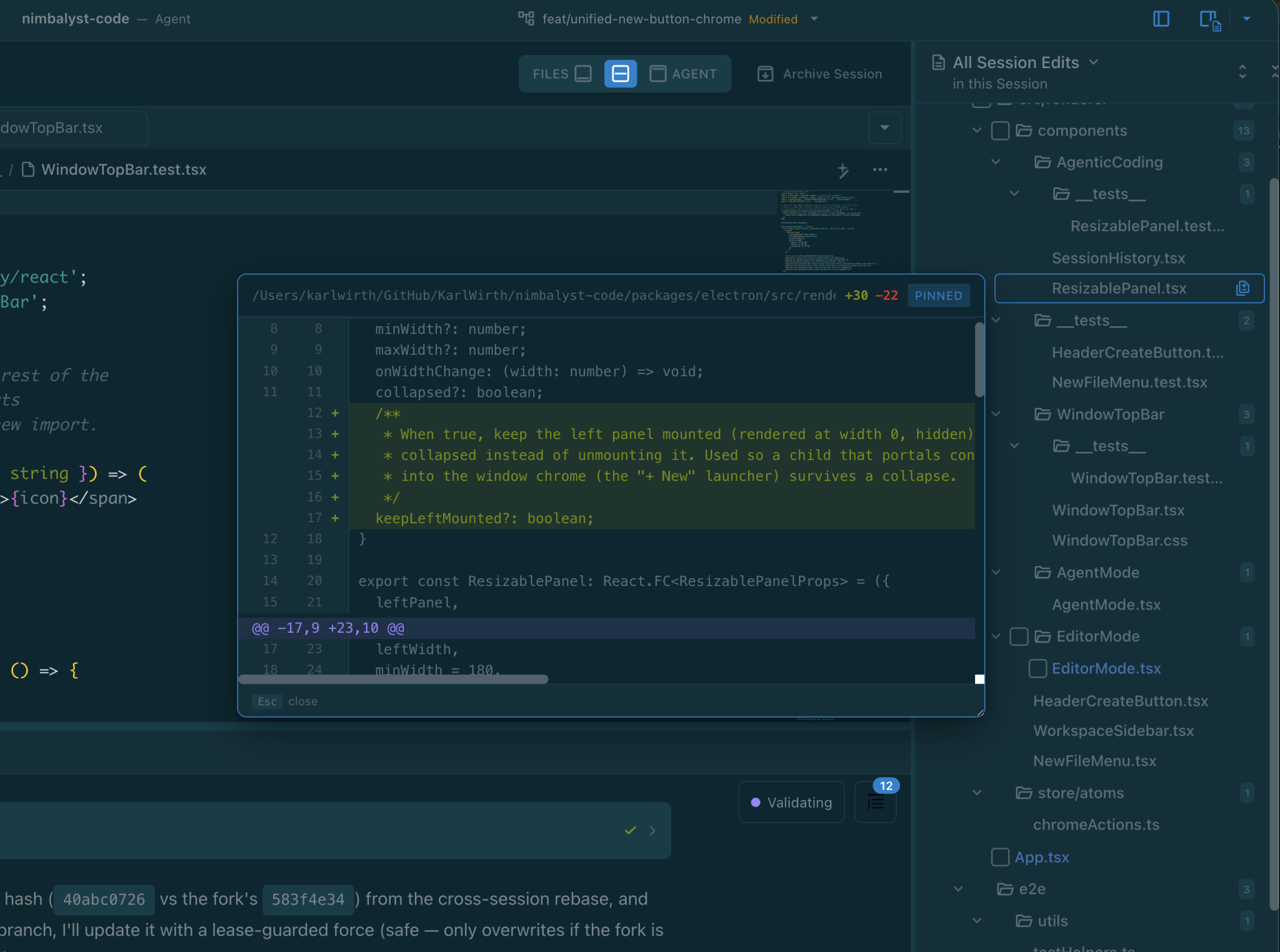
Hover any row in the Files Edited list and a peek icon appears on the right. Click it to open a unified diff popover anchored to the row, so you can see exactly what the agent changed without leaving the session view or opening the file.

* Hover the row to reveal the peek icon
* Click the icon to pin the diff popover
* The popover is resizable, and the size you pick is remembered (it stays in sync with the diff peek in the Git extension and the commit proposal widget)
* Click outside or press Esc to close


---

# Agent Instructions: Querying This Documentation

If you need additional information that is not directly available in this page, you can query the documentation dynamically by asking a question.

Perform an HTTP GET request on the current page URL with the `ask` query parameter:

```
GET https://docs.nimbalyst.com/file-management/file-edits-sidebar.md?ask=<question>
```

The question should be specific, self-contained, and written in natural language.
The response will contain a direct answer to the question and relevant excerpts and sources from the documentation.

Use this mechanism when the answer is not explicitly present in the current page, you need clarification or additional context, or you want to retrieve related documentation sections.