> For the complete documentation index, see [llms.txt](https://docs.nimbalyst.com/llms.txt). Markdown versions of documentation pages are available by appending `.md` to page URLs; this page is available as [Markdown](https://docs.nimbalyst.com/mobile/mobile-app.md).

# Mobile App

Nimbalyst Mobile lets you run your AI coding agents from your phone. Start new sessions, resume existing ones, review diffs, edit markdown files (alpha-for now) — all from your phone. It's not just a viewer; it's a full remote workspace for your agents.

### Why Mobile?

You're running multiple parallel sessions. You step away from your desk — lunch, commute, a meeting. Your agents finished 20 minutes ago and you have no idea. Or worse, one hit a blocker and has been sitting idle for an hour.

Nimbalyst Mobile keeps you connected to your agents wherever you are. Start new work, continue existing work, or just keep an eye on things.

### How It Works

Nimbalyst Mobile is available for **iOS**. It securely links to your local desktop running Nimbalyst. Select which projects you want to sync and start running sessions, editing files, and managing your agents on the go.

### Setup

* Authenticate to Nimbalyst
* Select which projects you want synched

<figure><img src="/files/4J3UM4W8NQG5wIxHTDim" alt=""><figcaption></figcaption></figure>

* Download the Nimbalyst mobile app from the **iOS App Store**
* Sign in with your email; Nimbalyst sends a magic link to finish signing in
* Click on the Pair Device icon in the desktop app
* In the mobile app, scan the QR code
* Authenticate in the mobile app with the same credentials

**If QR scanning doesn't work** (camera issues, bright sunlight): Use the "Copy to Clipboard" option on desktop and paste the pairing data manually into the mobile app's text field.

### Use Multiple Accounts

You can sign in with more than one Nimbalyst account on iOS and switch between them from the account menu.

Each account keeps its own organizations, project access, paired-device state, and personal sync profile. Switch to the account that owns a project or received a team invitation when that content is not visible.

On desktop, manage accounts under **Settings > Account > Accounts** and choose mobile projects under **Settings > Account > Mobile App**.

***

### What Syncs to Mobile

**Sessions:** Full conversation history, session metadata (title, provider, model), status, and draft inputs you're composing.

**Project Files:** Markdown files (`.md`) from enabled projects sync to mobile. You can both read and edit them — update documentation, plans, and notes directly from your phone. Edits sync back to desktop immediately. \[Alpha for now]

**What doesn't sync:** Code files, images, Excalidraw diagrams, mockups, data models, PDFs, CSVs, app settings, and extension data. These remain on desktop only.

***

### Start New Sessions

You don't need to be at your desk to kick off work. Start a brand new AI session directly from your phone — pick a project, type a prompt, and the session runs on your desktop machine. You can start sessions while commuting, in a meeting, or wherever you get an idea.

### Choosing a Model

Pick which agent and model run your work right from your phone. The model you select becomes the default for new sessions you start on mobile.

1. Open a project and stay on its **Sessions** list.
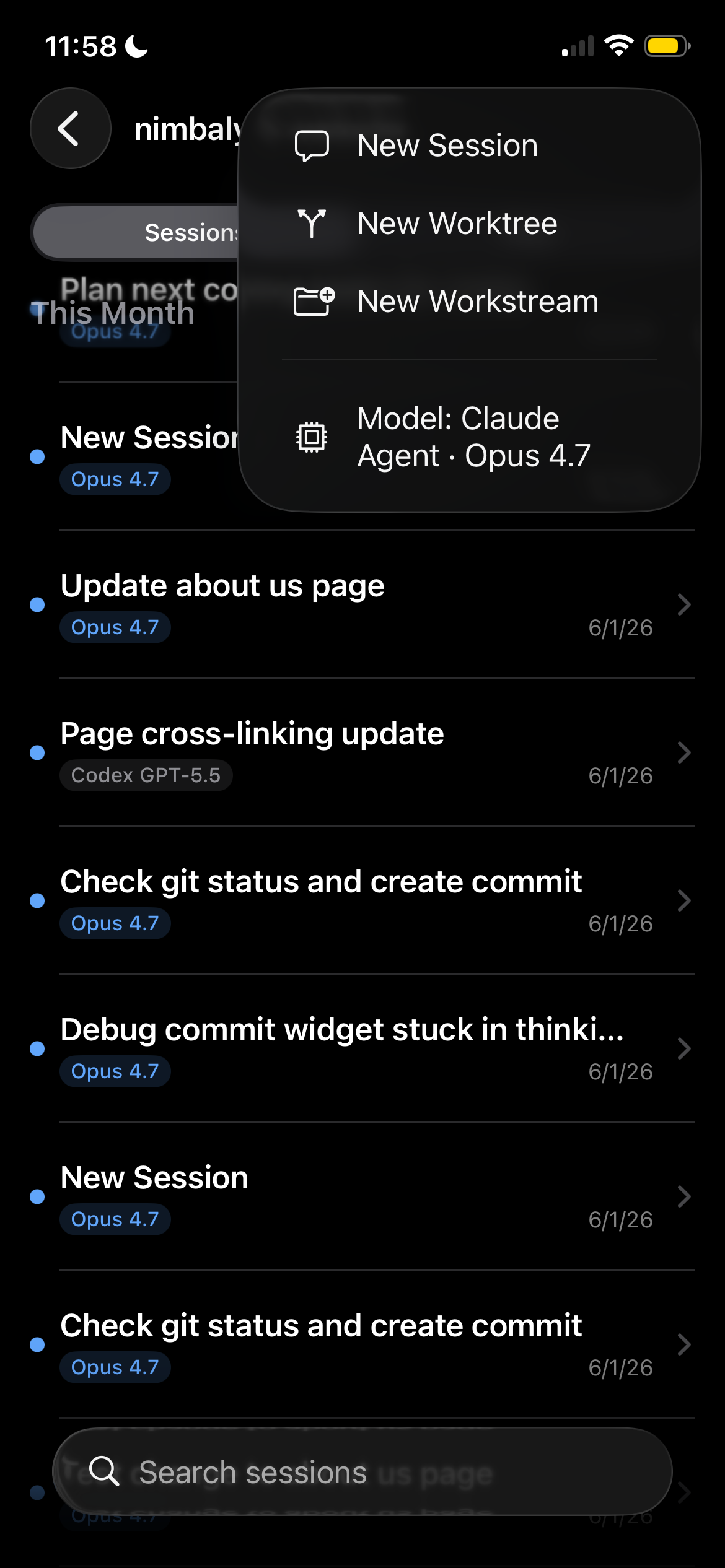
2. Tap the **+** button in the top right to open the new session menu.
3. Tap the **Model** row at the bottom of the menu. It shows the current agent and model selection.

<figure><img src="/files/B5wgayiGjZw9teCJftzQ" alt="Mobile new session menu showing the Model row at the bottom"><figcaption></figcaption></figure>

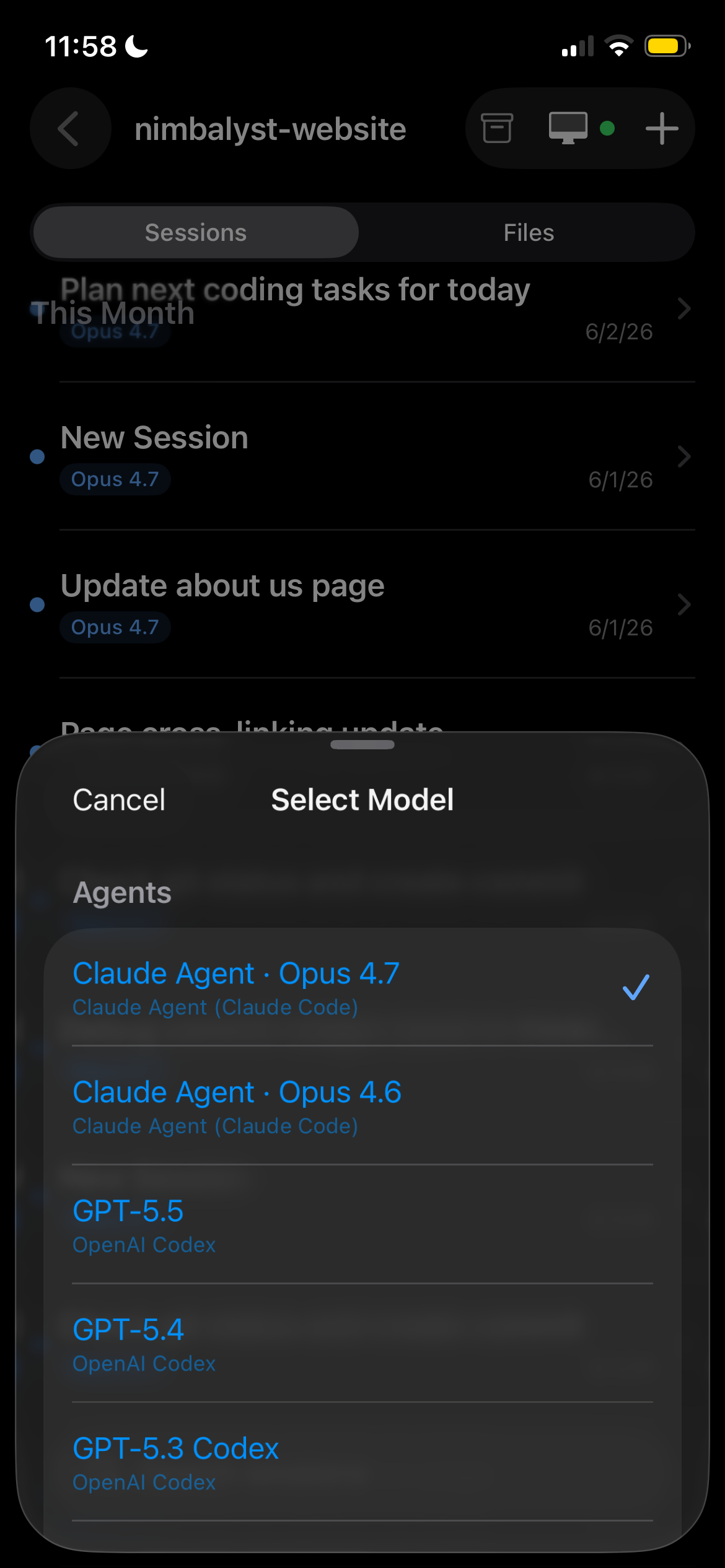
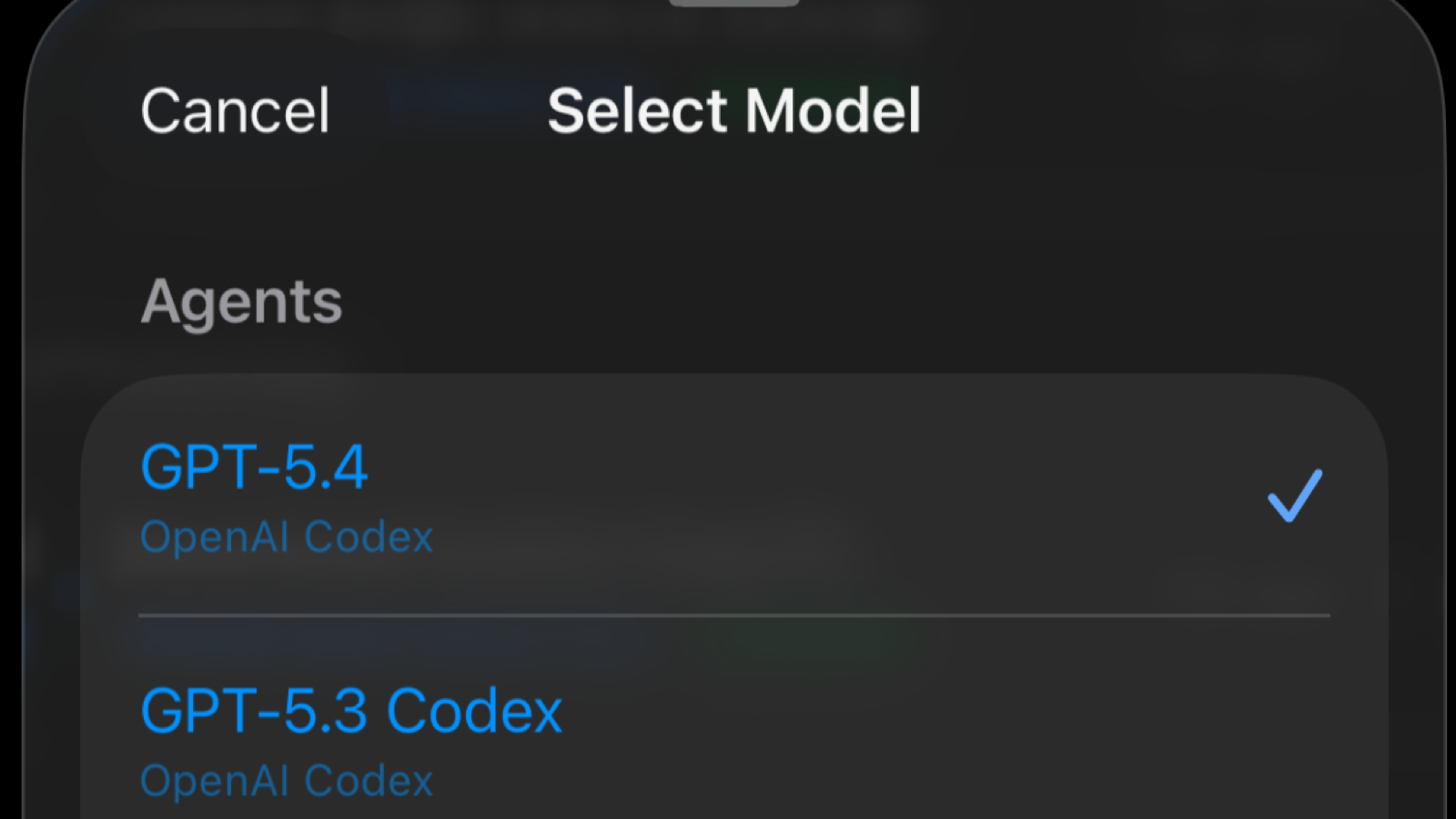
4. In the **Select Model** sheet, tap the model you want. A checkmark marks the active choice.

Models are grouped under **Agents**:

* **Claude Agent (Claude Code)**
* **OpenAI Codex**

The list reflects the providers and models you have set up on your desktop, so what you see may differ.

<figure><img src="/files/ggEUqBp1SuPGXcWNmhzd" alt="Select Model sheet listing Claude Agent and OpenAI Codex models with the active one checked"><figcaption></figcaption></figure>

Each session in your list also shows its own model badge, so you can tell at a glance which agent is running each one.

### Session Dashboard

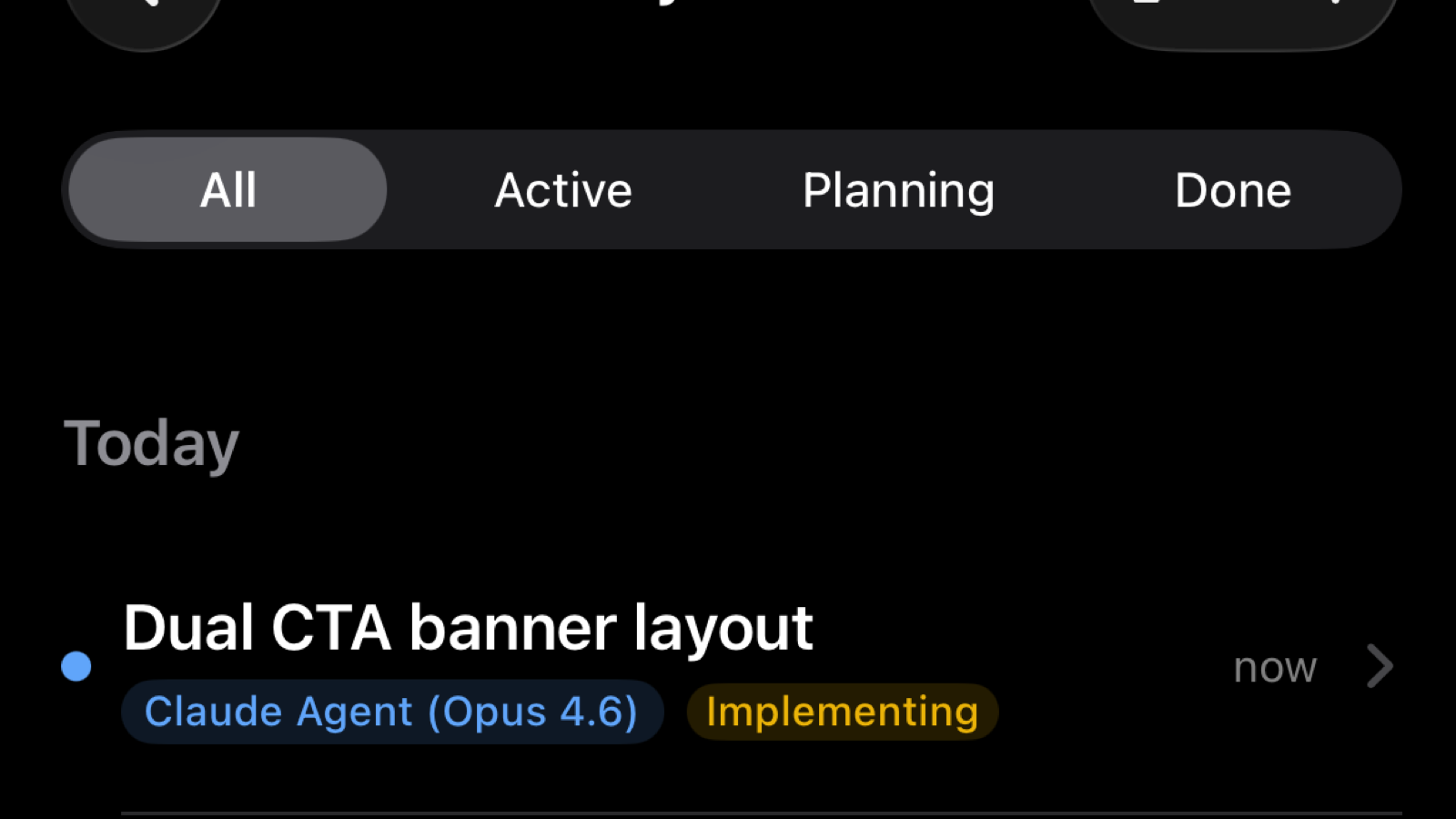
See all your active, completed, and paused sessions at a glance. Color-coded status. Sorted by activity. One tap to see details.

<figure><img src="/files/3hlqRUcVCfcr4plimSqE" alt="Mobile session dashboard showing active and completed agent sessions"><figcaption></figcaption></figure>

### Diff Review on Mobile

Swipe through file changes with visual red/green diffs optimized for mobile. Approve or reject individual changes. Leave comments for the agent.

<figure><img src="/files/8p93j9dKmSrkch9ZR1Xw" alt="Mobile diff review screen showing file edits ready for approval"><figcaption></figcaption></figure>

### Resume

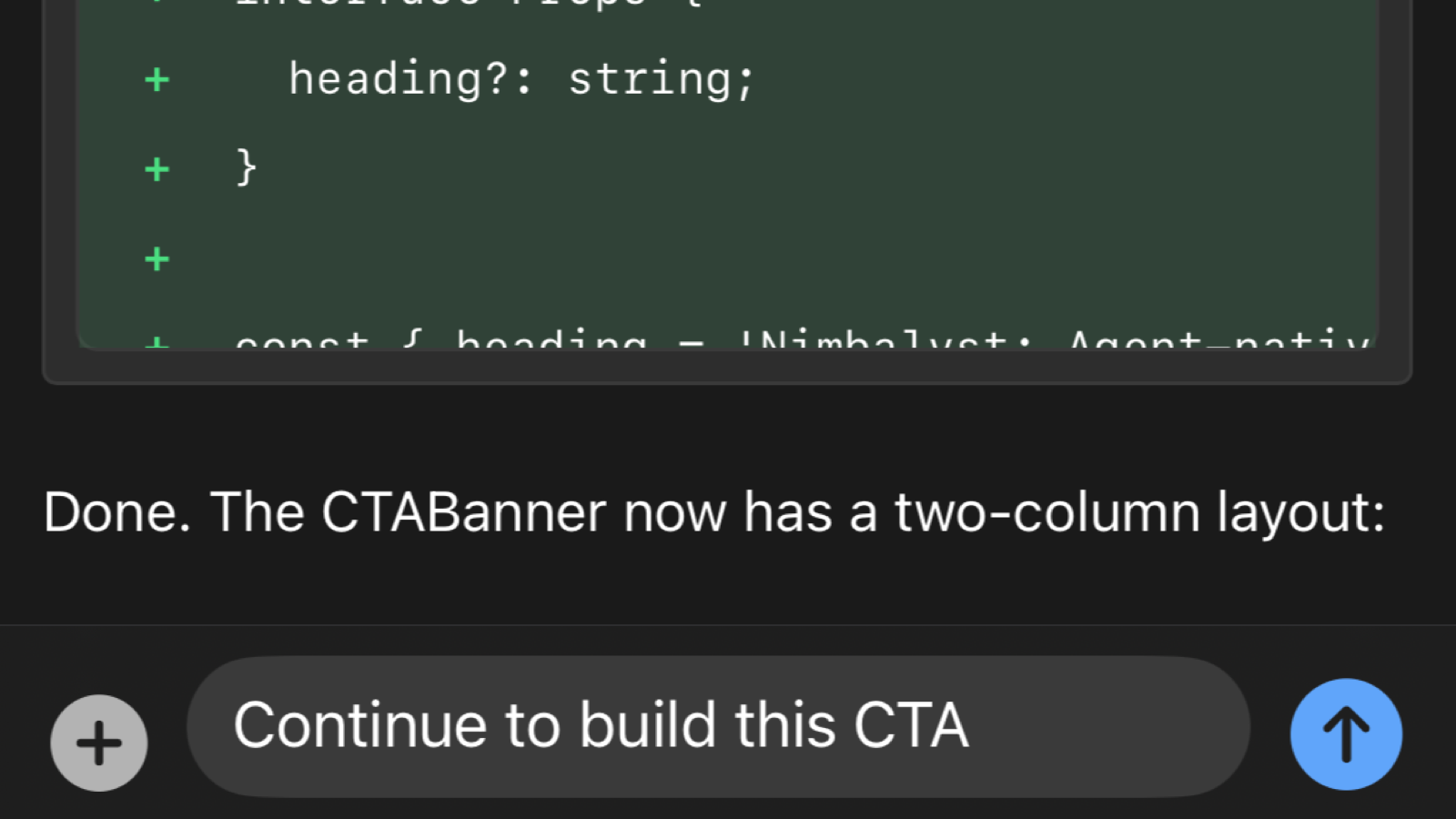
Session stalled? Resume it with a voice note or typed instruction right from your phone. Redirect the agent. Continue the conversation just like you would on desktop.

* **Queue a prompt:** If the session is busy, your prompt queues and runs when the current task finishes. You can queue multiple prompts while offline.
* **Attach images:** Take a photo or choose from your camera roll — useful for screenshots of bugs, whiteboard sketches, or design references.
* **Draft sync:** Start typing a message on mobile, switch to desktop — your draft is there waiting.

<figure><img src="/files/sBgGkEM3fbEXDF4AX7rS" alt="Mobile composer for resuming a session with a new instruction"><figcaption></figcaption></figure>

### Voice on Mobile

Drive your desktop sessions by voice from your phone. Ask the voice agent to start a new session, find a session by topic, switch between sessions, summarize one (including any question it is waiting on), answer a pending question, or send a new coding task to your desktop.

There is no permanent mic button. Start voice from the **•••** menu inside a session (**Start Voice Mode**), or from the **+** menu on a project's **Sessions** tab (**Start Voice Agent**). The floating mic appears once it connects, with **Pause** and **Cancel** so you stay in control.

Voice runs in the iOS app and is in alpha. See [Voice on Mobile](/mobile/voice-on-mobile.md) for setup, controls, and troubleshooting, or [Voice Mode](/setup-nimbalyst/voice-mode.md) for the desktop side.

### Push Notifications

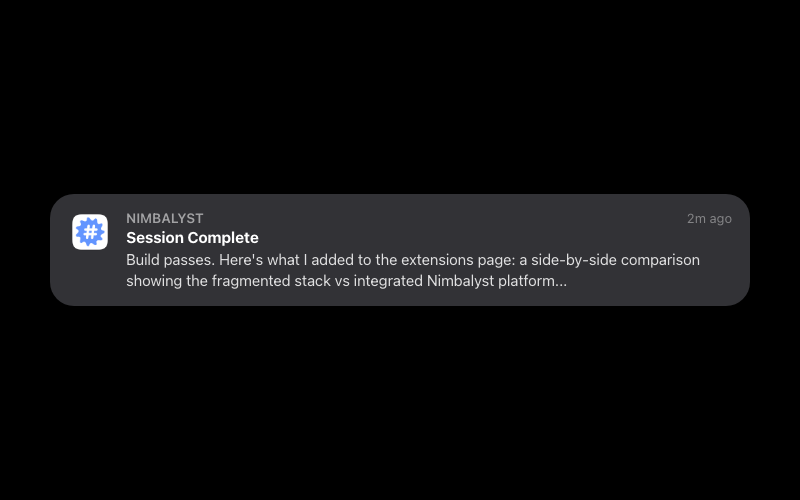
Get notified when sessions complete, hit errors, or need your approval. No more checking. No more FOMO. Your agents tell you when they need you.

**Smart routing:** Notifications only go to your phone when you're away from your desktop. If Nimbalyst is active on your Mac, your phone stays silent.

<figure><img src="/files/F0DpyC2fVLxCX1n3ruln" alt="Lock screen push notification from Nimbalyst Mobile"><figcaption></figcaption></figure>

### Desktop Sync

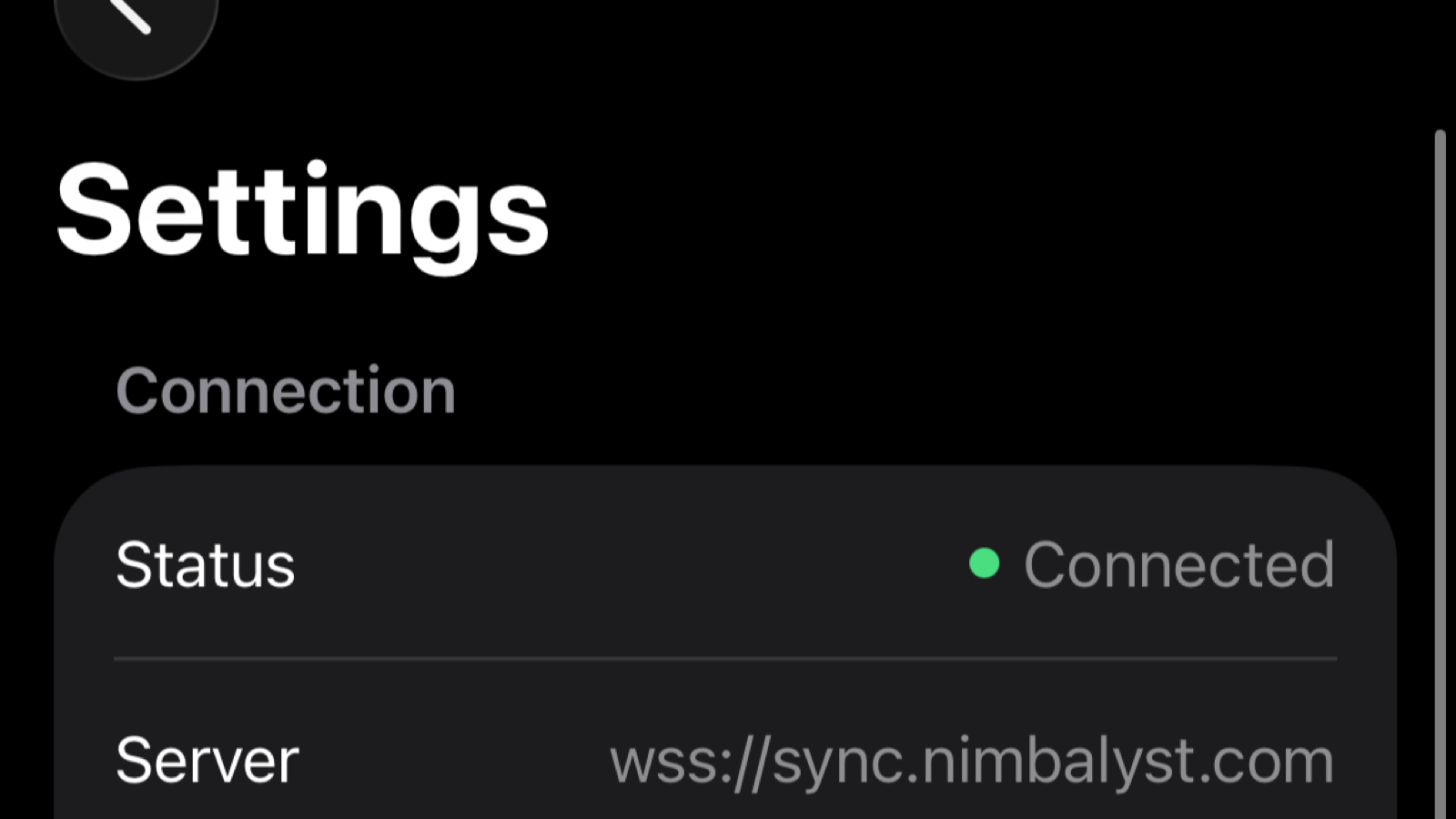
Everything syncs with your desktop Nimbalyst workspace. Changes you approve on mobile appear instantly on desktop. Sessions you queue from your phone start running on your machine.

<figure><img src="/files/0k1ETjFpGuYOZS7UfsB8" alt="Mobile settings screen showing connected desktop sync status"><figcaption></figcaption></figure>

### Sleep Prevention / Keep Awake

A common issue with mobile sync is your desktop going to sleep, which breaks the connection. In Nimbalyst Settings, you can enable **sleep prevention** to keep your desktop awake while syncing. Choose between:

* **Off** — default, no sleep prevention
* **Always** — keeps your desktop awake whenever Nimbalyst is running
* **When plugged in** — only prevents sleep when your computer is connected to power

### Clickable Links in Transcripts

Links in session transcripts on iOS are tappable, so you can open URLs directly from your mobile session view.

### Encryption and Privacy

All data synced between your devices is end-to-end encrypted:

* **Encryption:** AES-256-GCM per message, each with its own initialization vector
* **Key exchange:** Via QR code during setup — keys never touch our servers
* **Server access:** Our sync servers store and relay encrypted data. They cannot read your content.

Your encryption key is derived from the seed shared during QR pairing using PBKDF2 with 100,000 iterations.

### Offline Behavior

* **Reading:** Previously synced sessions and files are cached locally and readable without connectivity
* **Writing:** Compose and queue prompts while offline — they transmit automatically when you're back online
* **Limitations:** No push notifications or real-time updates while offline. New desktop sessions won't appear until you reconnect.

When you come back online, the app syncs incrementally — only fetching messages newer than what you already have.

### Troubleshooting

**Sessions not appearing on mobile**

* Verify the project is enabled under **Settings > Account > Mobile App** on desktop.
* Confirm that the same account is active on the desktop and phone.
* Check that mobile sync is enabled for that account.
* Ensure both devices are online

**Push notifications not working**

* Check that notifications are enabled in your phone's system settings for Nimbalyst
* Notifications are suppressed when Nimbalyst is active on desktop — this is intentional

**Sync feels slow**

* Large sessions with many messages take longer on first sync
* After initial sync, updates are incremental and near-instant
* Check your network connection on both devices

### Works With All Agents

Manage Claude Code and Codex sessions from one app. One interface for all your coding agents, wherever you are.

<figure><img src="/files/3rQfgxxPCcvpCJS2uvOw" alt="Model picker showing Codex model options inside the mobile app"><figcaption></figcaption></figure>


---

# Agent Instructions
This documentation is published with GitBook. GitBook is the documentation platform designed so that both humans and AI agents can read, navigate, and reason over technical content effectively. Learn more at gitbook.com.

## Querying This Documentation
If you need additional information that is not directly available in this page, you can query the documentation dynamically by asking a question.

Perform an HTTP GET request on the current page URL with the `ask` query parameter, and the optional `goal` query parameter:

```
GET https://docs.nimbalyst.com/mobile/mobile-app.md?ask=<question>&goal=<endgoal>
```

`ask` is the immediate question: it should be specific, self-contained, and written in natural language.
`goal` is optional and describes the broader end goal you are ultimately trying to accomplish on behalf of the user. GitBook uses it to tailor the answer towards what is most useful for that goal.

The response will contain a direct answer to the question and relevant excerpts and sources from the documentation.

Use this mechanism when the answer is not explicitly present in the current page, you need clarification or additional context, or you want to retrieve related documentation sections.