# Agent Window & Session Management

### Agent Window

In the File Window, you focus on editing your markdown files.

In the Agent Window, you focus on your sessions with your Agent. These sessions could include long chat discussions, research sessions, complex multi-file tasks, and AI-assisted development.

<figure><img src="/files/5xdeO3v76b5uzMBgk6T6" alt=""><figcaption></figcaption></figure>

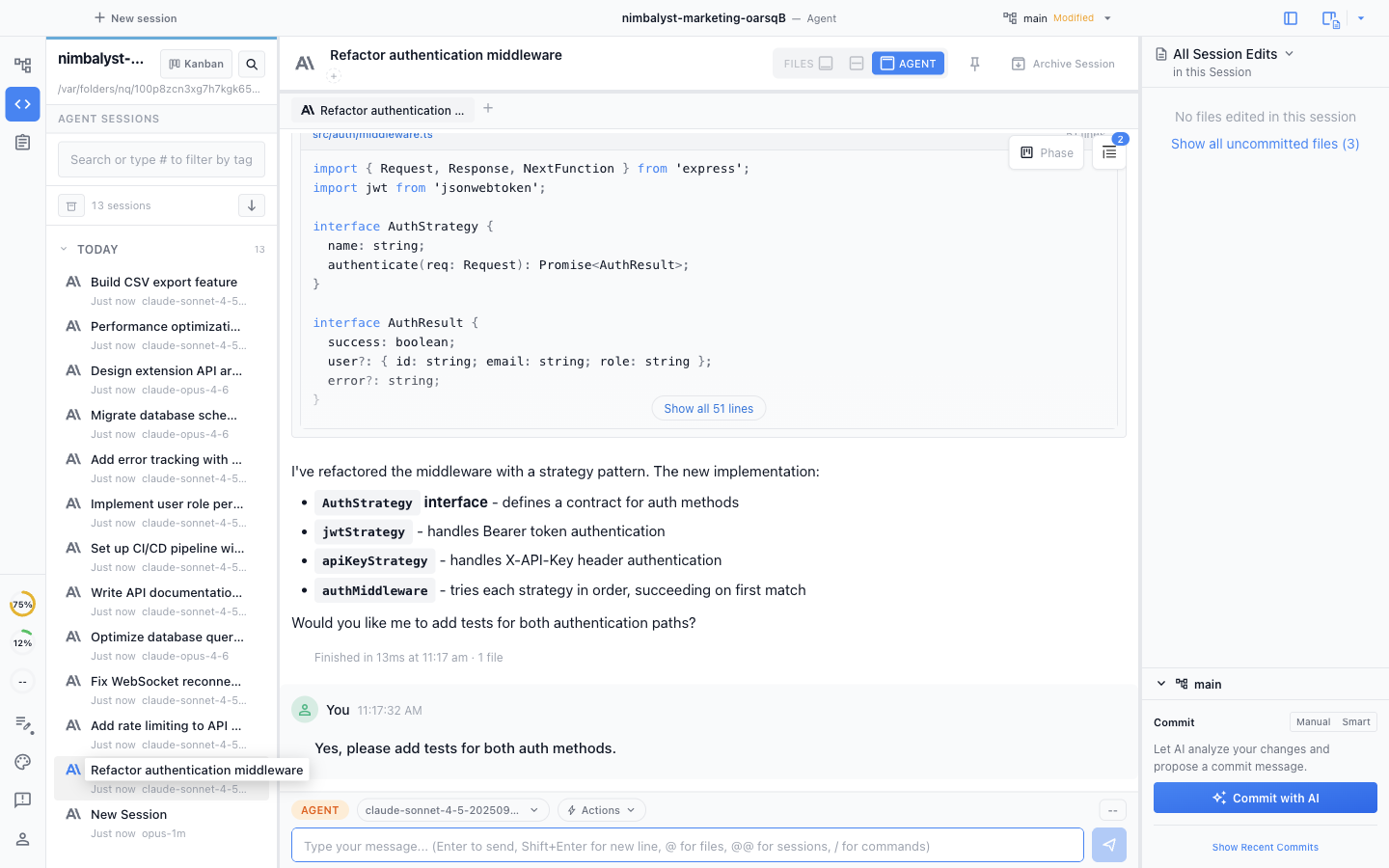
The Agent Window consists of three main areas:

* Left Sidebar showing your Sessions. You can Search sessions here and select them
* Central transcript area to converse with agent with full conversation history, tool call visualization, streaming content display
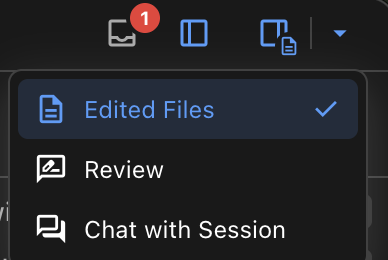
* Right panel showing you files edited and read by the agent and prompts used in the conversation

### Session Management

Run multiple parallel sessions.

Manage Sessions by:

* Searching
* Filtering
* Resuming

Relate Sessions to Documents and Documents to Sessions.

<figure><img src="/files/zr3b1uNOgQbAoUCWcd44" alt=""><figcaption></figcaption></figure>

### Session Features

<figure><img src="/files/hD0djeCLWxZ03Nm7krTA" alt=""><figcaption></figcaption></figure>

* **Turn summary stats** — each agent turn shows file count and line changes (e.g., "Finished in 6m 57s — 3 files +45 -12")
* **Click-to-copy code blocks** — click or tap inline code blocks in transcripts to copy with visual feedback
* **Maximize button** — in the chat sidebar, click the maximize button to open the current session in full agent mode
* **Drag-drop to create Workstreams** — drag a session onto a standalone session to create a Workstream
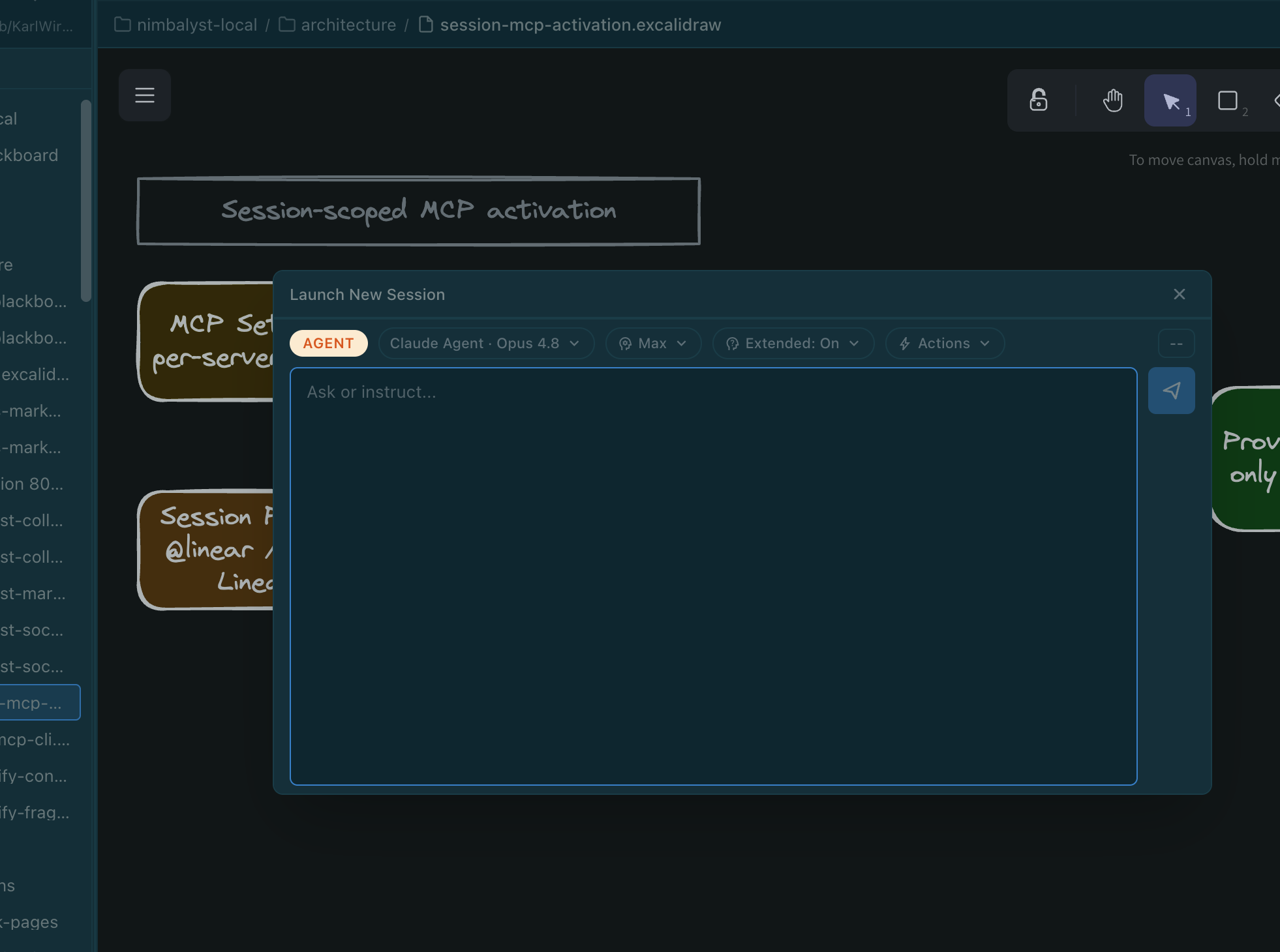
* **Start session from a document** — "Start a new agent session" from a document pre-populates with an @file reference to that document
* **Cmd+Shift+N** — create a new AI session from any mode
* **Rename a session** — right-click an existing session in the list and choose Rename. Sub-session renames live-update; workstream parent rows also support inline rename
* **Preferred Agent Language** — under **Settings → Agent Features**, set the language used to auto-generate session names (applies to Claude Code, Codex, and other providers)

### Session Kanban Board

Open the Session Kanban with **Cmd+Shift+K** to see all sessions in the workspace grouped by phase (Backlog, Planning, Implementing, Validating, Complete).

#### Live peek transcripts

Hover any session card and the transcript opens in a peek popover. If the session is running, the transcript streams in live as the agent works, so you can keep an eye on what it is doing without opening the session itself. The peek shows the recent context of long turns, not just the trailing tokens.

* Hover to open, move away to dismiss
* Streaming sessions update token by token in the peek
* Works for sessions, workstreams, and child sessions inside a workstream

### Self-Pacing Session Wakeups

Agents can schedule themselves to wake up later and continue working — useful for long-running tasks where the agent needs to check back on something after a delay rather than running continuously.

* The agent picks the wakeup time itself (anywhere from 60 seconds to 7 days out)
* Wakeups persist across app restarts, but only fire while Nimbalyst is running
* When a wakeup fires, you get an OS notification — clicking it focuses the workspace and opens the session
* A wakeup banner appears in the session header with **Cancel** and **Fire now** controls; sessions with a pending wakeup show a clock icon in the session list

If the workspace window is closed when the wakeup is due, the wakeup waits and re-fires the next time you open that workspace.

### System Tray Icon

The system tray menu shows session status at a glance:

* See which sessions are running, completed, or need attention
* Click any session to navigate directly to it
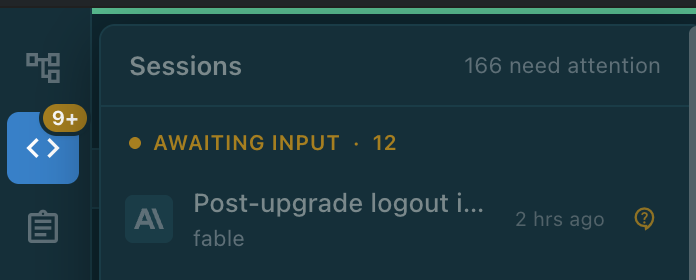
* Dock badge shows a count for sessions that need your attention

### Window State Persistence

The Agentic Coding Window remembers:

* Window size and position
* Active tab in sidebar
* Session ID
* Developer tools state (if open)
* Transcript scroll position

State is saved per workspace.


---

# Agent Instructions: Querying This Documentation

If you need additional information that is not directly available in this page, you can query the documentation dynamically by asking a question.

Perform an HTTP GET request on the current page URL with the `ask` query parameter:

```
GET https://docs.nimbalyst.com/session-management/agent-window-and-session-management.md?ask=<question>
```

The question should be specific, self-contained, and written in natural language.
The response will contain a direct answer to the question and relevant excerpts and sources from the documentation.

Use this mechanism when the answer is not explicitly present in the current page, you need clarification or additional context, or you want to retrieve related documentation sections.