> For the complete documentation index, see [llms.txt](https://docs.nimbalyst.com/llms.txt). Markdown versions of documentation pages are available by appending `.md` to page URLs; this page is available as [Markdown](https://docs.nimbalyst.com/setup-nimbalyst/voice-mode.md).
# Voice Mode
Talk to your coding agent and hear it reply. How to turn on Nimbalyst Voice Mode on desktop and mobile, pick a voice, and run hands-free.
Talk to your coding agent and have it talk back, on desktop and mobile. Voice Mode is in **alpha** while we polish it.
### Turn it on
Open **Settings > Application > Voice Mode** and flip the toggle. There is no separate release channel to switch. The panel also shows microphone permission status, with a deep link to macOS System Settings if you need to grant access.
The mic button in the activity bar lights up while Voice Mode is active.
### What the voice agent can do
* **Start a new coding session by voice.** Say something like "create a new session" and the agent creates one and makes it active, so any follow-up such as "ask the coding agent to..." or "run this prompt" targets the new session without you navigating there.
* **Run "Commit with AI" by voice.** The agent surfaces the same commit-proposal widget you get from the UI. Approve or reject by voice.
* **Use workspace slash commands.** Ask the voice agent to run a slash command that is available in the current project, such as "run the commit command" or "use slash track for this bug."
* **Generate a project summary** without an Anthropic API key. "Generate Project Summary" launches a new session in your configured agent (Claude Code, Codex, and so on) rather than calling the Anthropic API directly.
The voice agent reads the same workspace command catalog as the chat composer. A command must be available in the current project before voice can use it. See [/ Commands and Skills](/session-management/commands-and-skills.md) for built-in, extension-provided, and custom commands.
### On mobile
The voice agent runs in the iOS app too, and can drive your desktop sessions hands-free:
* Start a new coding session on your desktop.
* Find a session by topic, spoken in your own words.
* Switch between sessions.
* Summarize a session, including any question it is waiting on.
* Answer a session's pending question by voice.
* Send a new coding task to your desktop agent.
There is no permanent mic button on mobile. Start voice from the **+** menu on a project's **Sessions** tab (**Start Voice Agent**) or from the **•••** menu inside a session (**Start Voice Mode**). The API key comes from your desktop rather than a field on the phone. For setup, controls, and troubleshooting, see [Voice on Mobile](/mobile/voice-on-mobile.md).
#### The floating mic
While the voice agent is working, a floating mic shows what it is doing at each step. **Pause** stops it listening or speaking, and **Cancel** ends the turn, so you always stay in control.
### Settings
Voice Mode has its own settings panel under **Settings > Application > Voice Mode**:
* **Realtime Model.** `gpt-realtime-2` is the newer model, with stronger reasoning, a larger context window, and more consistent voice. `gpt-realtime` is the fallback for accounts without access to it.
* **Reasoning Effort.** Choose from minimal, low, medium, high, and extra high. Higher is smarter but slower and more expensive; low is a good default for a responsive voice relay. This applies to `gpt-realtime-2`.
* **Voice.** Pick the spoken voice, with a Preview button to hear a sample.
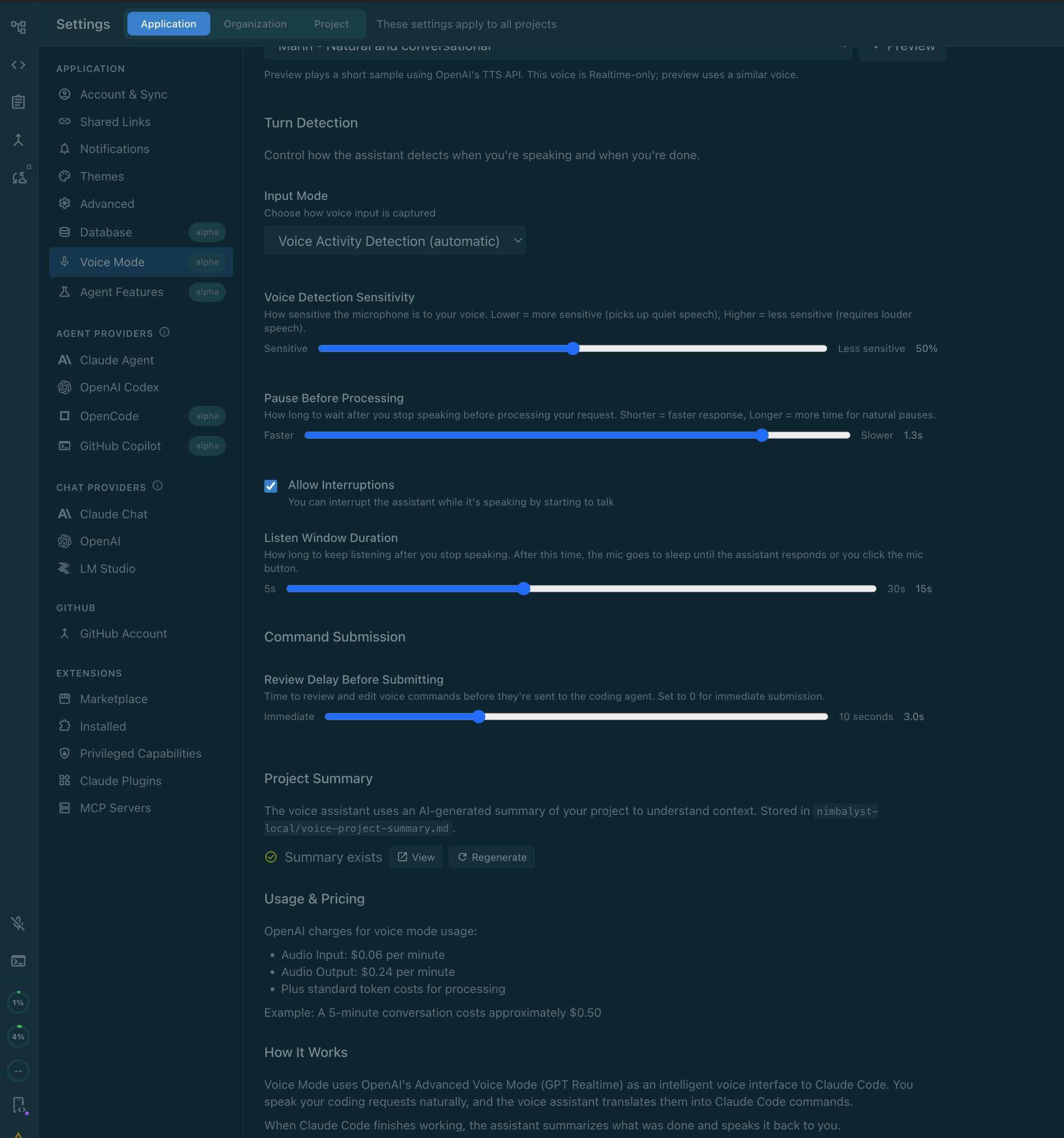
* **Turn detection.** Tune how the agent decides you are done speaking: input mode, voice-detection sensitivity, pause before processing, whether it can be interrupted, and how long the mic keeps listening (the listen window, 5 to 30 seconds).
* **Command submission.** Set a review delay before a voice command is sent to the coding agent, from immediate up to 10 seconds, so you can catch and edit a misheard request.
* **Language.** The voice agent always speaks in your configured preferred language, whatever language you speak to it in.
The Voice Mode settings panel under Settings > Application > Voice Mode.
The panel also shows a **Project Summary** (an AI-generated overview of your project that the voice agent uses for context, which you can regenerate) and OpenAI's **usage pricing** for voice, since Voice Mode runs on OpenAI's realtime voice models.
### The listen window
On desktop, the listen window (15 seconds by default) starts when audio playback drains in your speakers, not when the server finishes streaming, so the mic stays open through the end of the agent's reply. Turns that only call a function also wake the mic, with a short readiness cue when there is no audible reply.
### A note on stability
Voice Mode is alpha and may change, break, or be removed without notice. If you hit a problem, share feedback via Discord or our support channels. See [Feedback, Discord, Support, Releases](/getting-started/feedback-discord-support-releases.md).
---
# Agent Instructions
This documentation is published with GitBook. GitBook is the documentation platform designed so that both humans and AI agents can read, navigate, and reason over technical content effectively. Learn more at gitbook.com.
## Querying This Documentation
If you need additional information that is not directly available in this page, you can query the documentation dynamically by asking a question.
Perform an HTTP GET request on the current page URL with the `ask` query parameter, and the optional `goal` query parameter:
```
GET https://docs.nimbalyst.com/setup-nimbalyst/voice-mode.md?ask=&goal=
```
`ask` is the immediate question: it should be specific, self-contained, and written in natural language.
`goal` is optional and describes the broader end goal you are ultimately trying to accomplish on behalf of the user. GitBook uses it to tailor the answer towards what is most useful for that goal.
The response will contain a direct answer to the question and relevant excerpts and sources from the documentation.
Use this mechanism when the answer is not explicitly present in the current page, you need clarification or additional context, or you want to retrieve related documentation sections.