Creating Items
There are four ways to create tracker items in Nimbalyst, from conversational AI to structured YAML.
From Chat
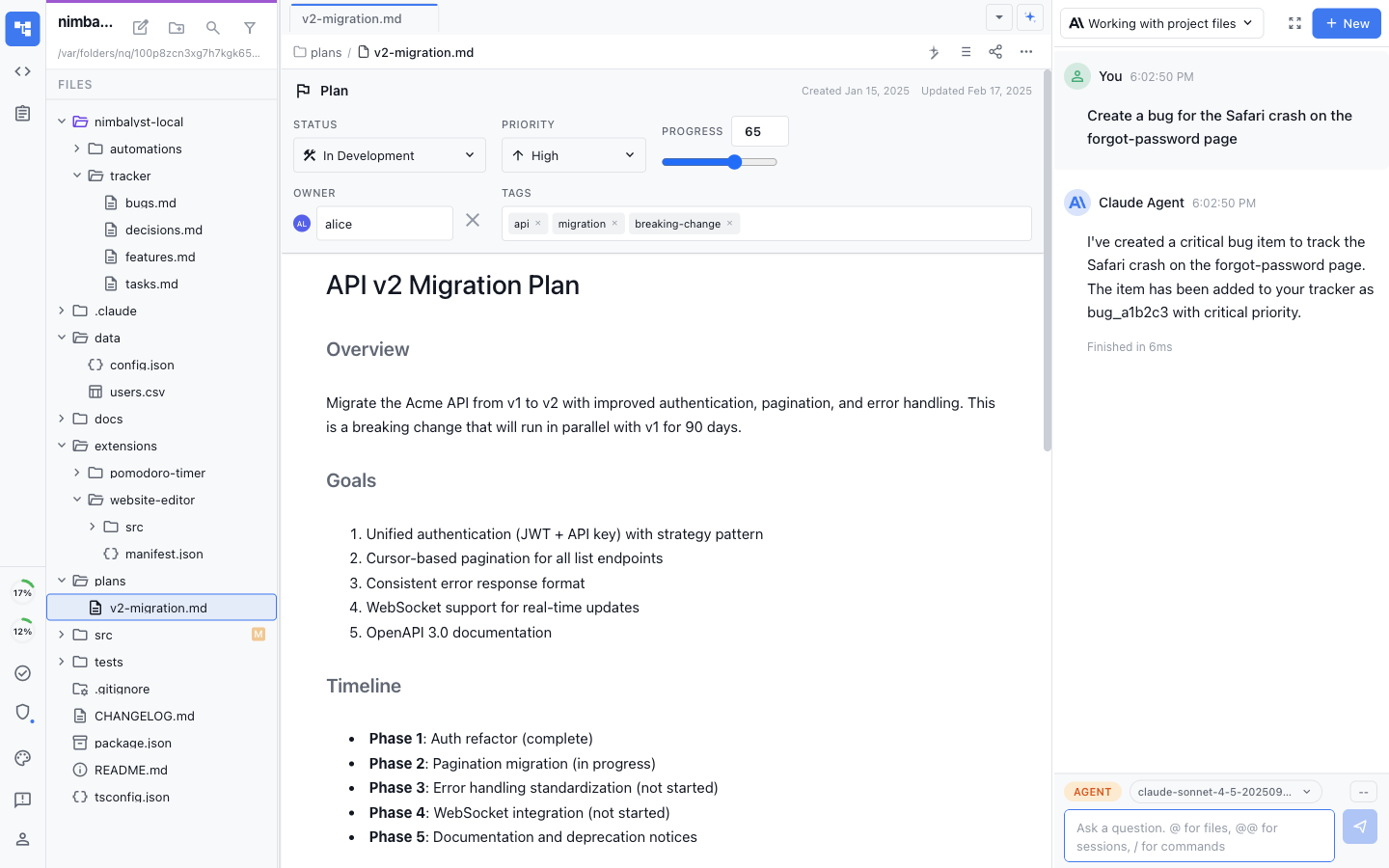
Ask the AI agent to create items during any session:
"Create a bug for the login page crash on Safari" "Track this as a feature request: dark mode for the dashboard" "Log a decision: we're using PostgreSQL instead of MongoDB"
The AI determines the appropriate type, sets the status and fields based on your description, and creates the item. Items created this way are automatically linked to the current session.
From the /track Command
Use /track in the chat input for quick inline creation:
The AI analyzes your description, determines the item type (bug, task, feature, etc.), and creates it in your project's tracker files. This is the fastest path when you know what you want to track.
Inline in Markdown
Track items directly within any markdown document using #type[...] syntax:
Inline items appear in the tracker alongside full-document items. Edit their properties in the markdown text or through the tracker UI -- changes sync both ways.
From YAML Frontmatter
Add trackerStatus frontmatter to any markdown file to make it a tracked item:
The tracker system automatically picks up files with trackerStatus frontmatter and displays them in the kanban board. Changes to the file update the tracker item, and changes made through the tracker UI update the file.
This approach works well for plans, decisions, and features that deserve their own dedicated document.
From the Tracker Panel
You can also click the +New button in the tracker panel to create an item directly. Select the type, fill in the fields, and the item is created as a markdown file in your tracker directory.
Last updated
