Item Detail, Comments, Activity
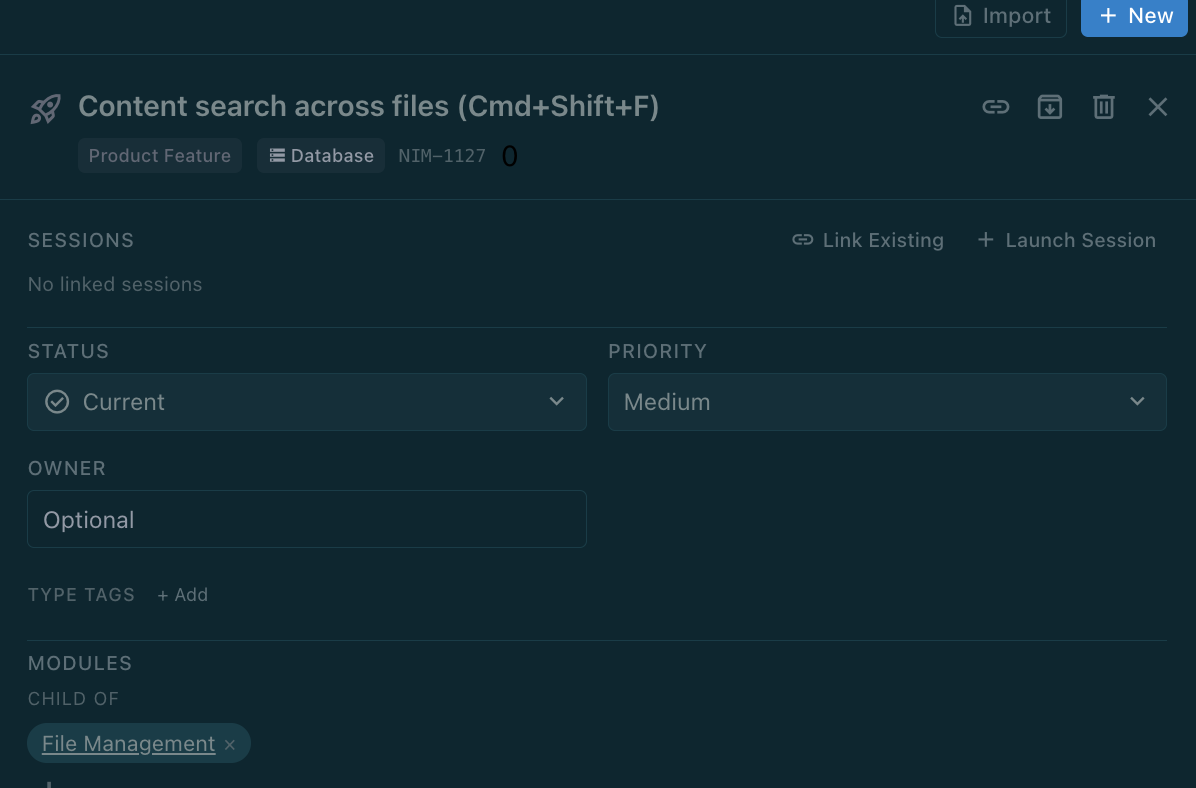
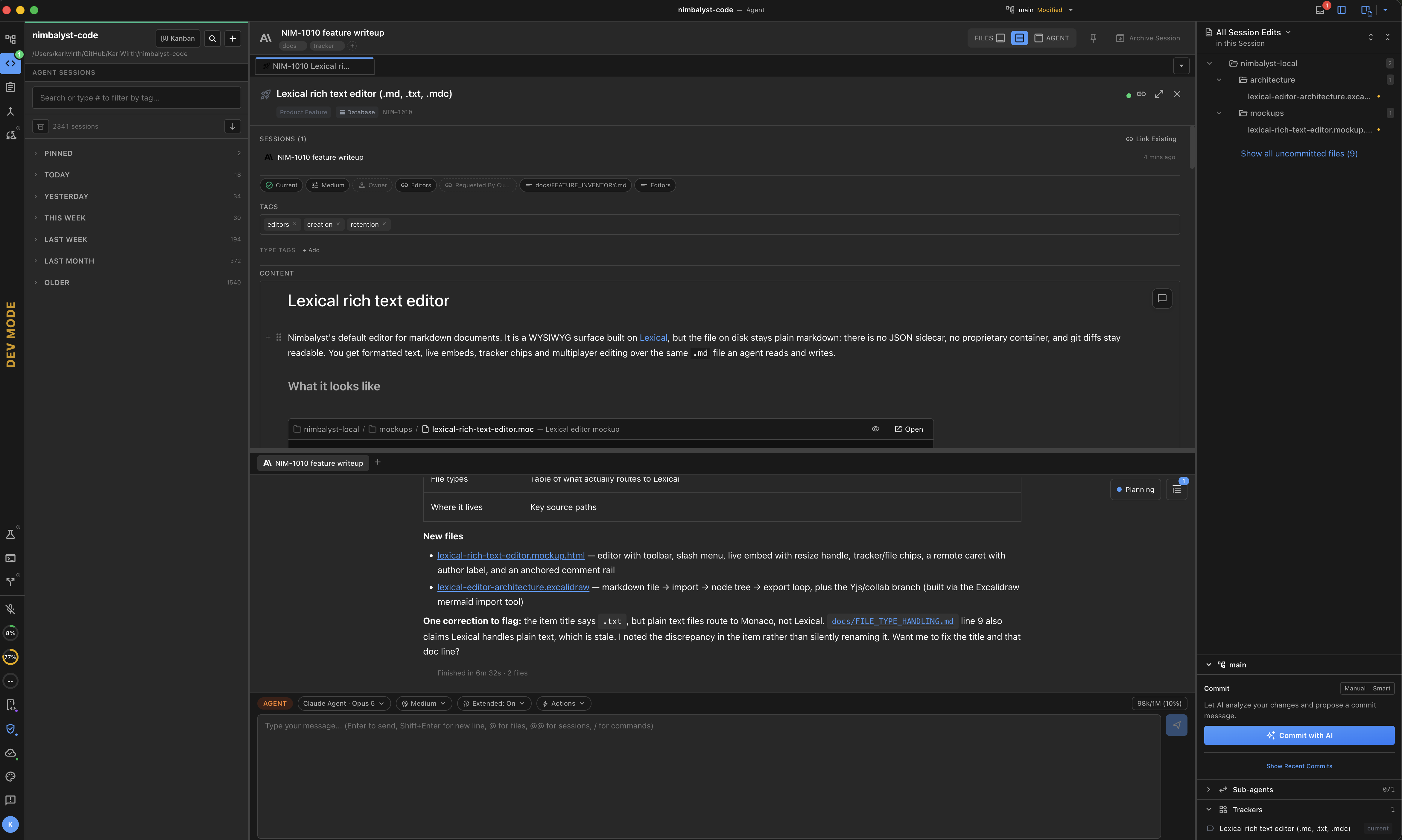
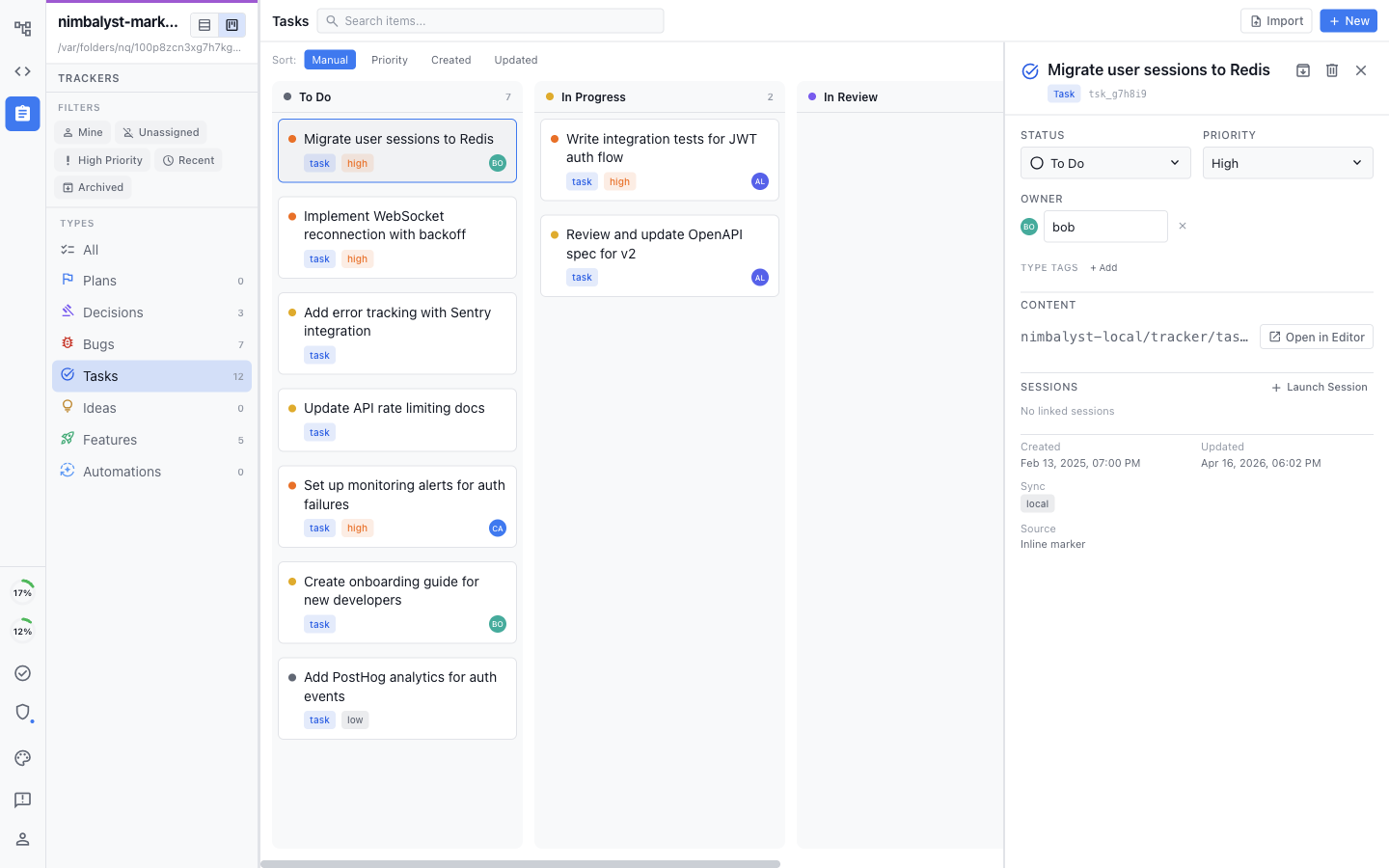
Click any item in the kanban board or list view to open the detail panel. The detail view shows all fields for an item and lets you edit them in place.
Editable Fields
Title -- Click the title text to edit it inline.
Status -- Dropdown with all valid statuses for the item's type.
Priority -- Dropdown (Critical, High, Medium, Low).
Owner -- User picker to assign responsibility.
Description -- Text area for detailed notes and context.
Tags -- Add or remove categorization tags.
Due Date -- Date picker for deadlines.
Progress -- Percentage slider, available on Plan items only.
Fields vary by item type. For example, Feature items include Release Version and Release Notes, while Idea items have only Title and Status.
Comments
Add comments to discuss an item without changing its fields. Each comment shows the author and timestamp.
Comments are useful for team discussions, leaving notes for your future self, or recording context that doesn't fit in the description. AI agents can also add comments to items during sessions.
Activity Log
Every change to an item is recorded in the activity log:
Who made the change (you or an AI agent)
When it happened
What changed (field name, before value, after value)
The activity log provides a complete audit trail. When an AI agent updates an item during a session -- marking a bug as done or changing a plan's progress -- that change is recorded with the same detail as manual edits.
Linked Sessions
Items created or modified during AI sessions are automatically linked. The detail view shows connected sessions so you can jump back to the conversation where the item was discussed, created, or updated.
Linked Files
Items backed by markdown files show their source file path. You can also explicitly link additional files to an item for reference -- design docs, specs, or related source code.
Last updated