# Kanban and List Views

The tracker provides two ways to view your items: a kanban board for visual status management and a list view for dense, sortable data.

### Kanban Board

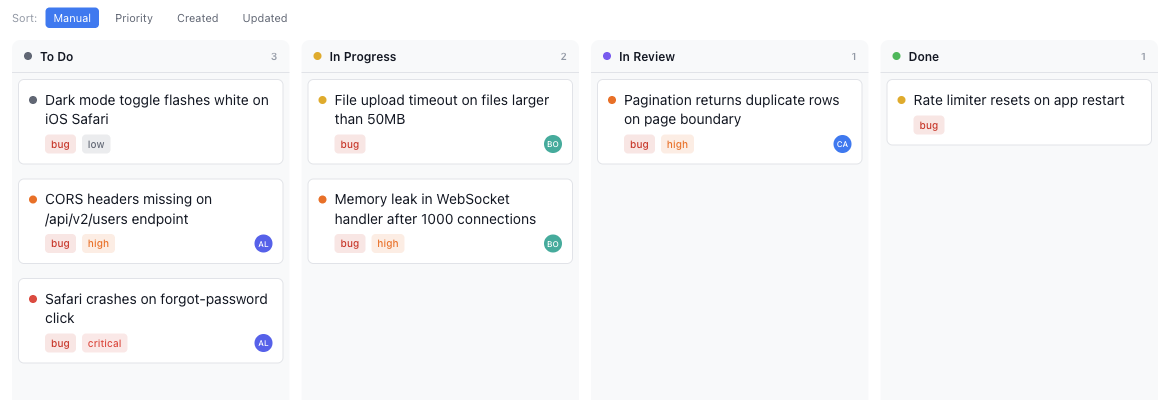
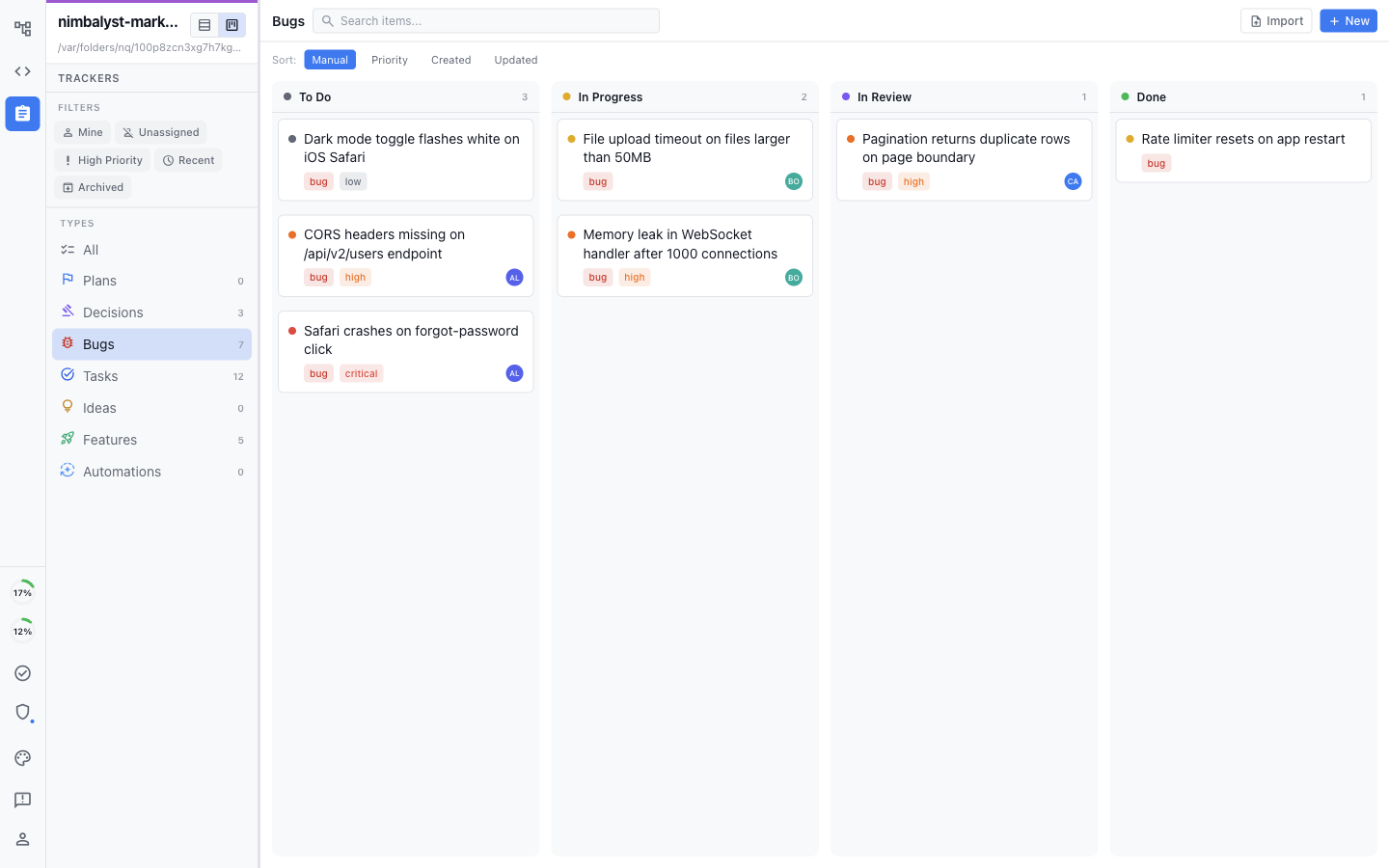
The kanban board organizes items into columns by status. Each item type has its own status workflow, so the columns change depending on which type you are viewing.

<figure><img src="/files/HQCuarKTb1srEJPlI3uh" alt=""><figcaption></figcaption></figure>

### Moving Items

* **Drag between columns** to change an item's status. Dragging a task from "To Do" to "In Progress" updates the item immediately.
* **Drag within a column** to reorder items. Manual ordering lets you prioritize work visually without changing status.

### Card Display

Each card on the board shows:

* Type icon (color-coded by item type)
* Item title
* Priority badge (if set)
* Owner avatar (if assigned)
* Type tag label

<figure><img src="/files/QgODlwnuHpjPjN22SCsj" alt=""><figcaption></figcaption></figure>

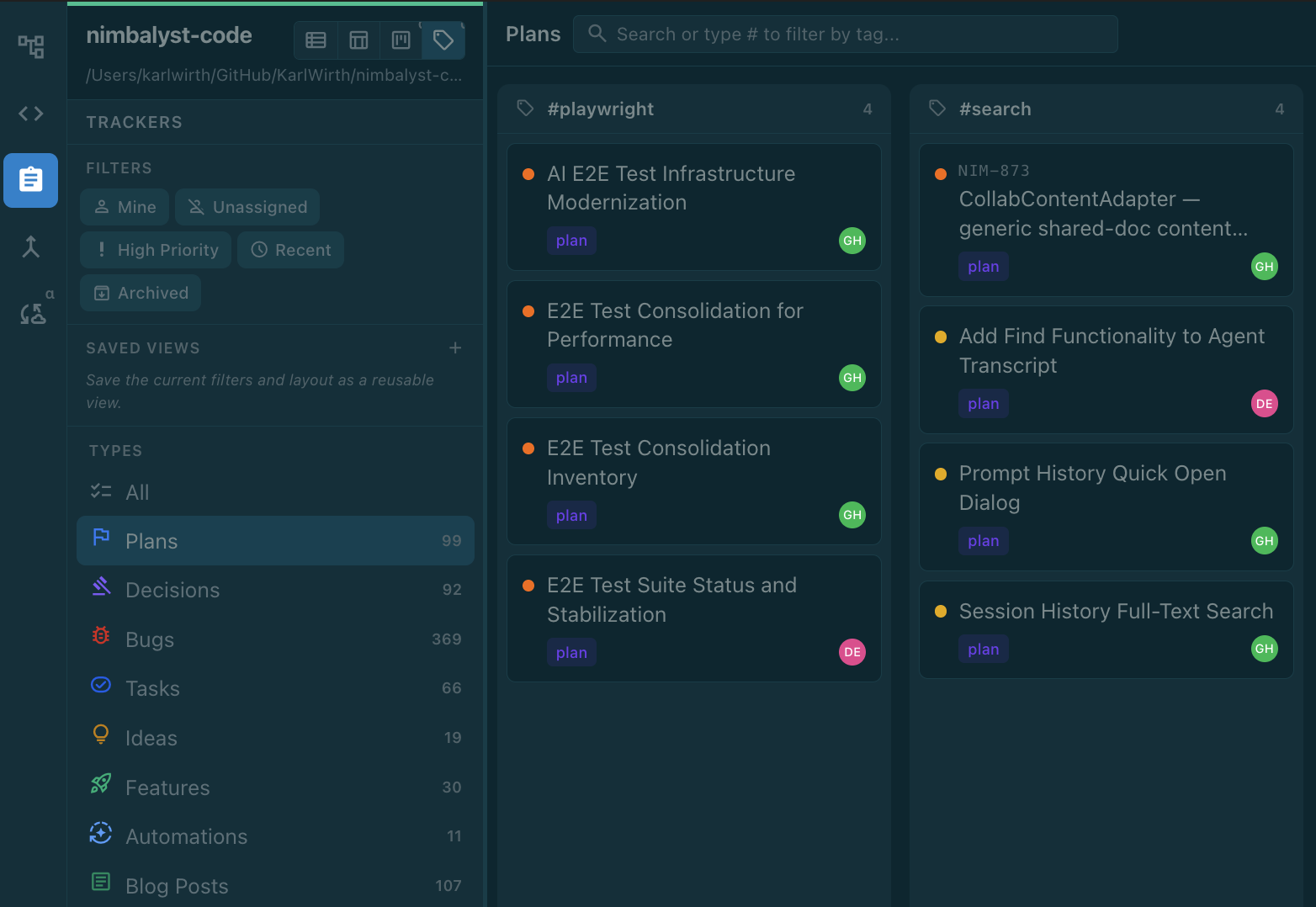
### Detailed View

* Click any card to open its detail view.

<figure><img src="/files/ynEPB3Qh2GEHDXUqy3gb" alt=""><figcaption></figcaption></figure>

### Selection

* **Click** a card to select it and open the detail panel.
* **Shift-click** to select a range of cards.
* **Click a column header** to select all cards in that column.
* **Right-click a column header** to open a context menu with bulk actions.

### Filtering

Filter chips and controls sit above the board:

* **"Mine"** -- Show only items assigned to you.
* **"Unassigned"** -- Show only items with no owner.
* **Type filter** -- Select which item type to display (Bug, Task, Feature, etc.).
* **Text search** -- Search across titles, descriptions, and item IDs.

### List View

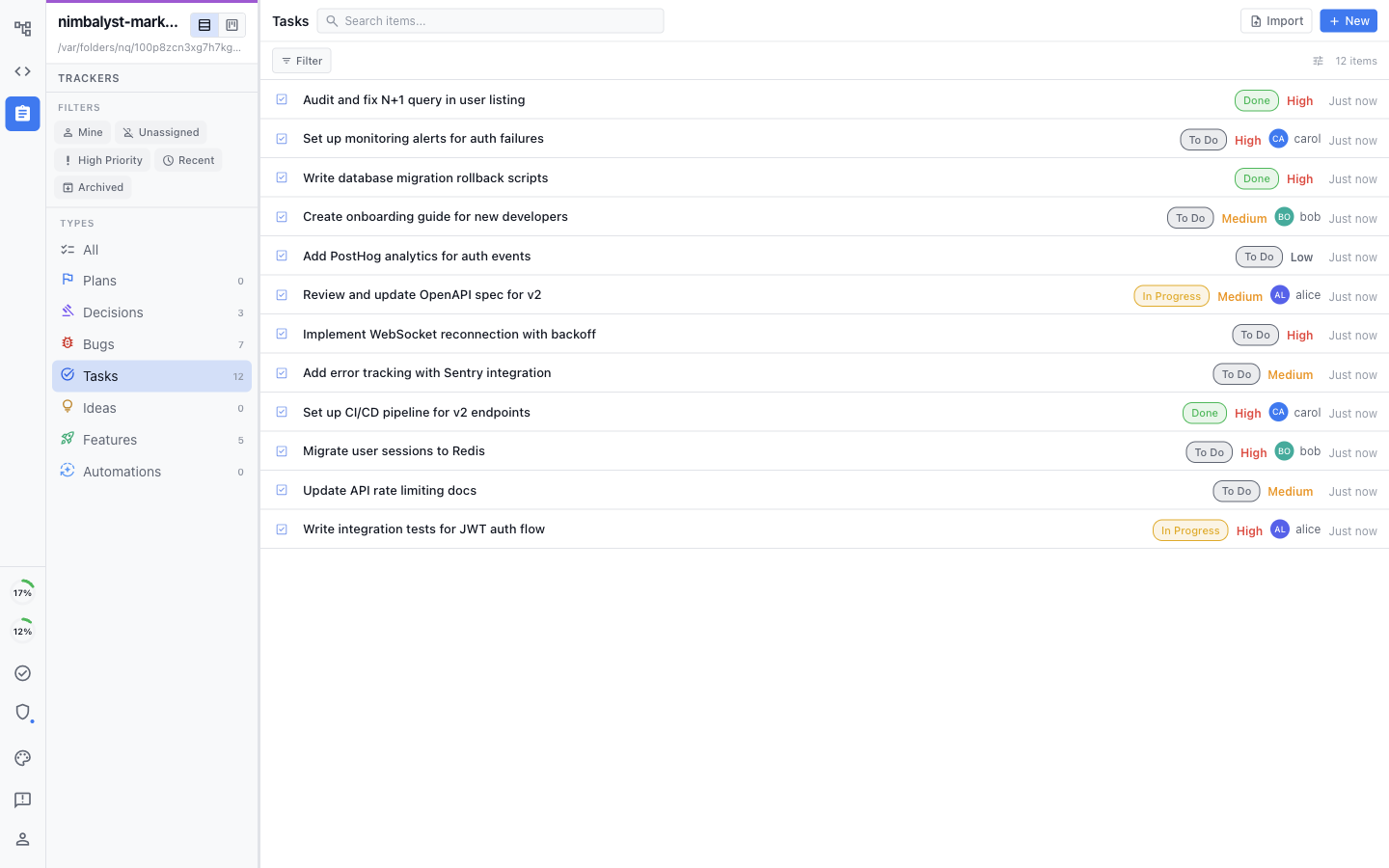
Switch to the list view for a table-based layout. The list view shows one row per item with sortable columns.

<figure><img src="/files/X8mzTF9d1UL6fn0Z8Czc" alt=""><figcaption></figcaption></figure>

* **Click a column header** to sort by that field (title, status, priority, owner, etc.).
* **Resize columns** by dragging the column border.
* **Configure visible columns** to show or hide fields that matter to you.
* The same filtering and search controls from the kanban view apply here.

The list view works well when you have many items and need to scan or sort quickly, while the kanban view is better for visualizing workflow stages.


---

# Agent Instructions: Querying This Documentation

If you need additional information that is not directly available in this page, you can query the documentation dynamically by asking a question.

Perform an HTTP GET request on the current page URL with the `ask` query parameter:

```
GET https://docs.nimbalyst.com/task-management/kanban-and-list.md?ask=<question>
```

The question should be specific, self-contained, and written in natural language.
The response will contain a direct answer to the question and relevant excerpts and sources from the documentation.

Use this mechanism when the answer is not explicitly present in the current page, you need clarification or additional context, or you want to retrieve related documentation sections.