> For the complete documentation index, see [llms.txt](https://docs.nimbalyst.com/llms.txt). Markdown versions of documentation pages are available by appending `.md` to page URLs; this page is available as [Markdown](https://docs.nimbalyst.com/task-management/referencing-tracker-items.md).

# Referencing Tracker Items

You can drop a live reference to any tracker item into a document or an AI chat. The reference renders as a chip that shows the item's current status and title, and it stays current as the item changes.

### Insert a reference with

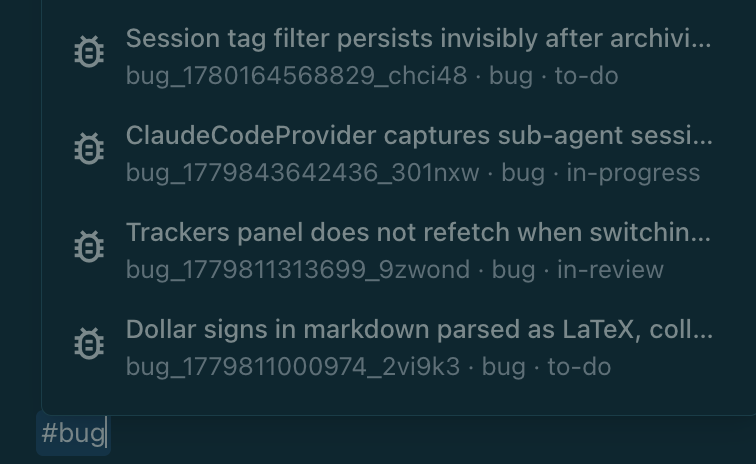
In a document, type `#` and start typing to search your items by key, title, or description. Pick one from the list to insert it as a chip. Typing `##` or `###` still creates a heading, so your markdown headings are unaffected.

* Narrow the search to one type by including its name, for example type `#bug` to list only bugs, then keep typing to filter.
* Archived items are left out of the picker.

<figure><img src="/files/4Yd4NrlBc0fdSVRQM255" alt="The tracker reference picker filtered to bug items after typing #bug"><figcaption><p>Type # to search your items. Add a type name, like #bug, to narrow the list.</p></figcaption></figure>

The same reference works in the AI chat, so you can point the agent at a specific item as you talk to it.

### What the chip shows

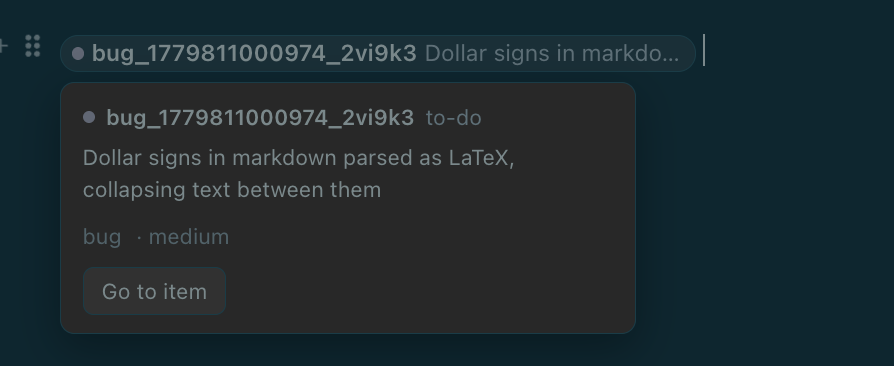
A reference chip can show the item's type, issue key, live title, workflow state, and owner. Because it resolves the item live, those values update on their own as the item changes. Completed items keep their reference but cross out the title, making finished work visible without making the link disappear.

Click a chip to open a preview with the item's status, type, priority, and owner, plus a **Go to item** button that takes you straight to it. If the underlying item can't be found (it was deleted, or has not synced to this machine yet), the chip shows the identifier in muted text and marks it as not resolved.

<figure><img src="/files/TRFTzKcA7a4P1op8xi5x" alt="An inserted tracker reference chip and its preview card with a Go to item button"><figcaption><p>A reference chip, and the preview that opens when you click it, with status, type, priority, and a Go to item button.</p></figcaption></figure>

In raw markdown, a reference is stored as a link using the `nimbalyst://` scheme, so it survives round-tripping through plain text.

### References from the AI

When an agent mentions a Tracker item in chat, it links the item as the same clickable chip instead of plain text. You get the live workflow state at a glance and can click through to the item without hunting for it.

References to other AI sessions in the transcript are clickable too, so you can move directly to the related conversation.


---

# Agent Instructions
This documentation is published with GitBook. GitBook is the documentation platform designed so that both humans and AI agents can read, navigate, and reason over technical content effectively. Learn more at gitbook.com.

## Querying This Documentation
If you need additional information that is not directly available in this page, you can query the documentation dynamically by asking a question.

Perform an HTTP GET request on the current page URL with the `ask` query parameter, and the optional `goal` query parameter:

```
GET https://docs.nimbalyst.com/task-management/referencing-tracker-items.md?ask=<question>&goal=<endgoal>
```

`ask` is the immediate question: it should be specific, self-contained, and written in natural language.
`goal` is optional and describes the broader end goal you are ultimately trying to accomplish on behalf of the user. GitBook uses it to tailor the answer towards what is most useful for that goal.

The response will contain a direct answer to the question and relevant excerpts and sources from the documentation.

Use this mechanism when the answer is not explicitly present in the current page, you need clarification or additional context, or you want to retrieve related documentation sections.