> For the complete documentation index, see [llms.txt](https://docs.nimbalyst.com/llms.txt). Markdown versions of documentation pages are available by appending `.md` to page URLs; this page is available as [Markdown](https://docs.nimbalyst.com/team-collaboration/documents.md).

# Collaborative Documents

## Every document, shared with your team and their agents

Markdown, mockups, diagrams, and more, edited together in real time or asynchronously. Each teammate's locally running Nimbalyst and configured agents work in the same shared files, not separate copies.

> **Free alpha:** Nimbalyst Teams is free during the alpha. Alpha features may have bugs or change before launch. Teams will require a paid subscription after launch; final pricing has not been announced. [Join the waitlist](https://nimbalyst.com/waitlist/) for launch and pricing updates.

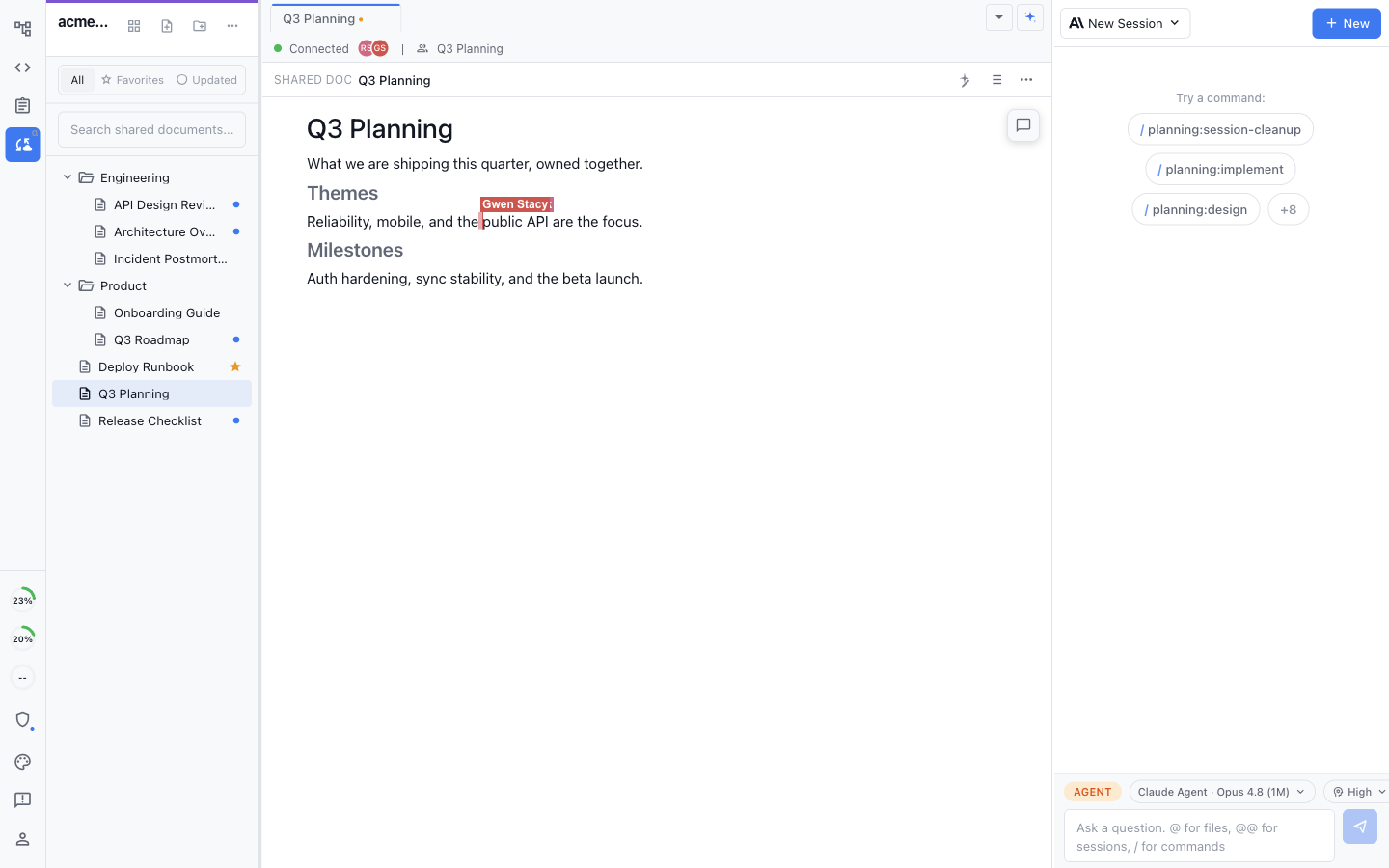
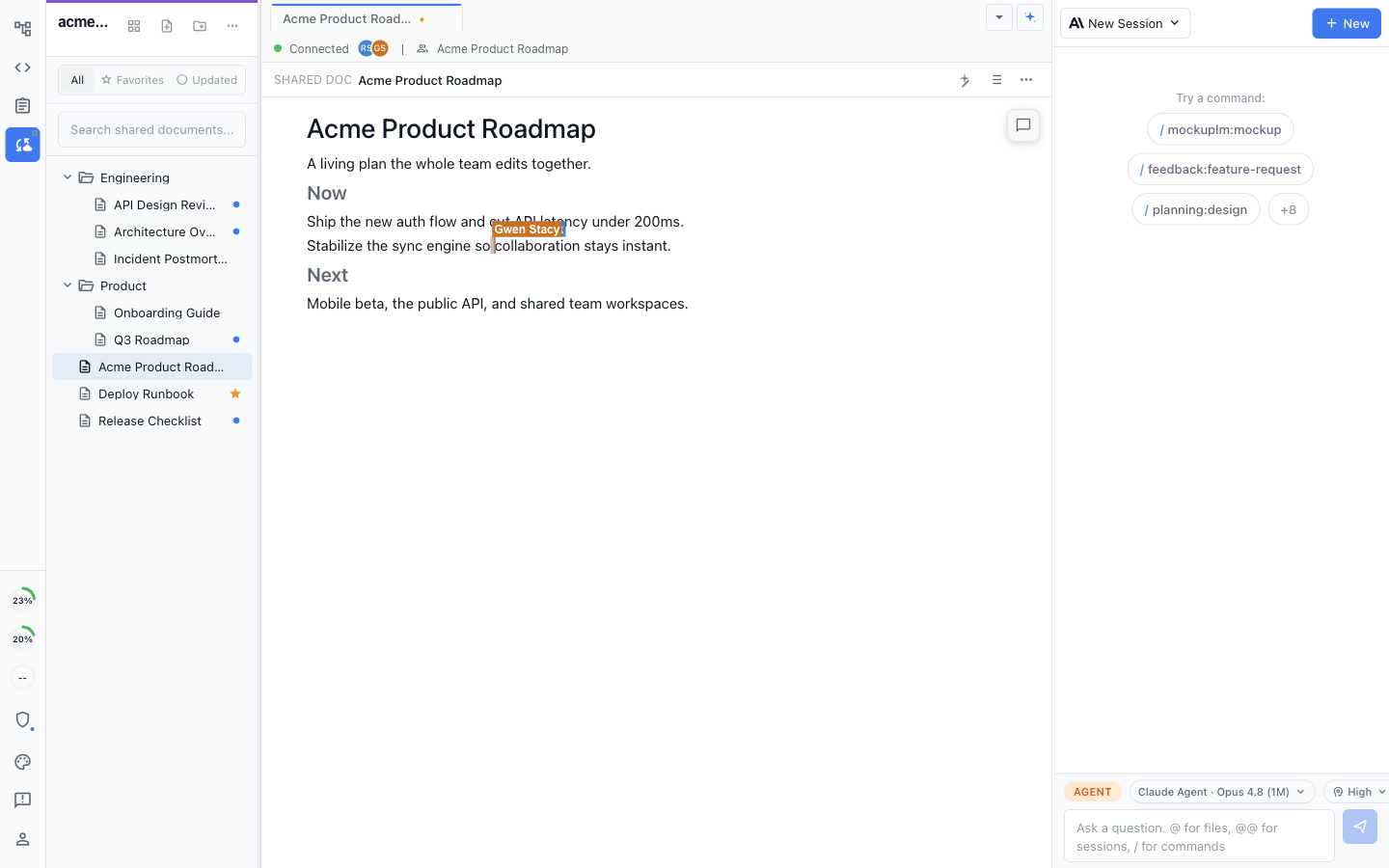
<figure><img src="/files/IefrgYjbADy387FEJeZ4" alt="Two teammates editing the same markdown document in real time, with presence and a live labeled cursor"><figcaption><p>True multiplayer editing keeps everyone on one shared copy.</p></figcaption></figure>

### Everyone in the same document at once

<figure><img src="/files/NzxPYJEjihBizU3unfJM" alt="Two teammates editing the same document with presence avatars and a live labeled cursor"><figcaption><p>Presence avatars and labeled cursors show who is in the document and where they are working.</p></figcaption></figure>

* **True multiplayer:** Type in the same markdown, mockup, or diagram at the same time, with a live cursor for every person in the document.
* **See who is here:** Presence avatars show who is in the document and where they are working right now.
* **Your agents, in the same file:** Each teammate's local Claude Code and Codex agents edit the same shared document, so people and agents stay on one copy.

### One document, every kind of content inside it

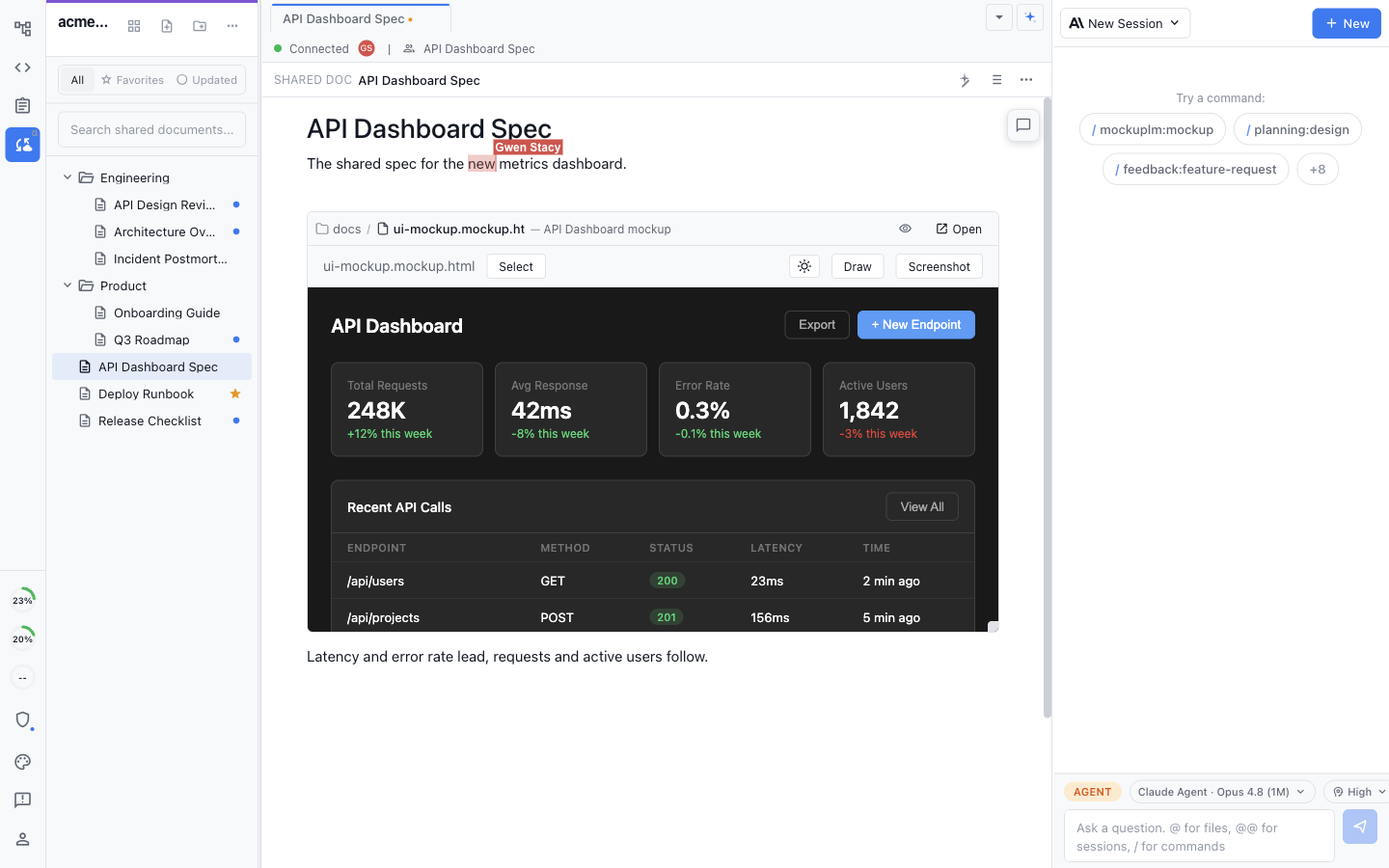
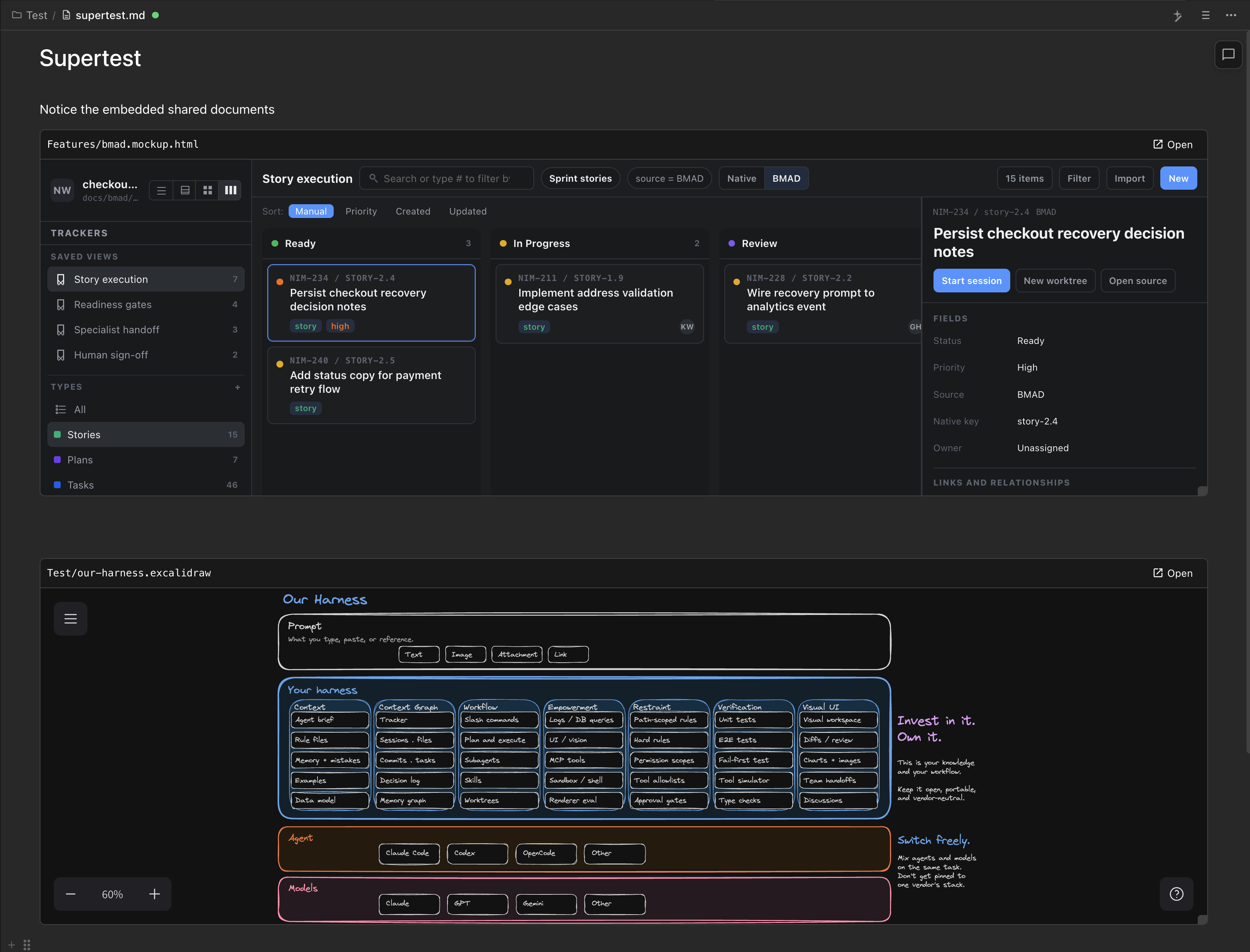
Shared documents are not limited to text. Embed a mockup, diagram, image, or inline tracker in the page and edit it in place.

<figure><img src="/files/vPtTE7Era3Qoy8Drfnpv" alt="A shared document with a UI mockup embedded inline and a live cursor"><figcaption><p>The embedded mockup remains editable inside the shared document.</p></figcaption></figure>

* **Markdown, mockups, and diagrams:** Work in shared markdown, UI mockups, Excalidraw, Mermaid, mind maps, data models, and spreadsheets in one workspace.
* **Embed anything inline:** Drop an Excalidraw canvas, mockup, image, or other supported extension file into a document and edit it inline.
* **Inline trackers:** Add an editable tracker reference inside a document so the plan and the task remain connected.

Type `@` to choose a project file. Put the file reference by itself in a paragraph and Nimbalyst upgrades compatible editor types into a live inline embed.

### Supported Shared File Types

Nimbalyst can share and co-edit:

* Markdown, plain-text, and code files such as TypeScript, HTML, Swift, and Python
* Excalidraw diagrams and supported visual diagrams
* Mockups
* CSV, TSV, and calc spreadsheets
* Data models
* Other extension file types that declare collaboration support

The editor determines how collaboration appears. Text and code show live cursors and selections, spreadsheets show the selected cell and active editor, and visual editors can show canvas selections and presence.

### Promote any local file to shared in a click

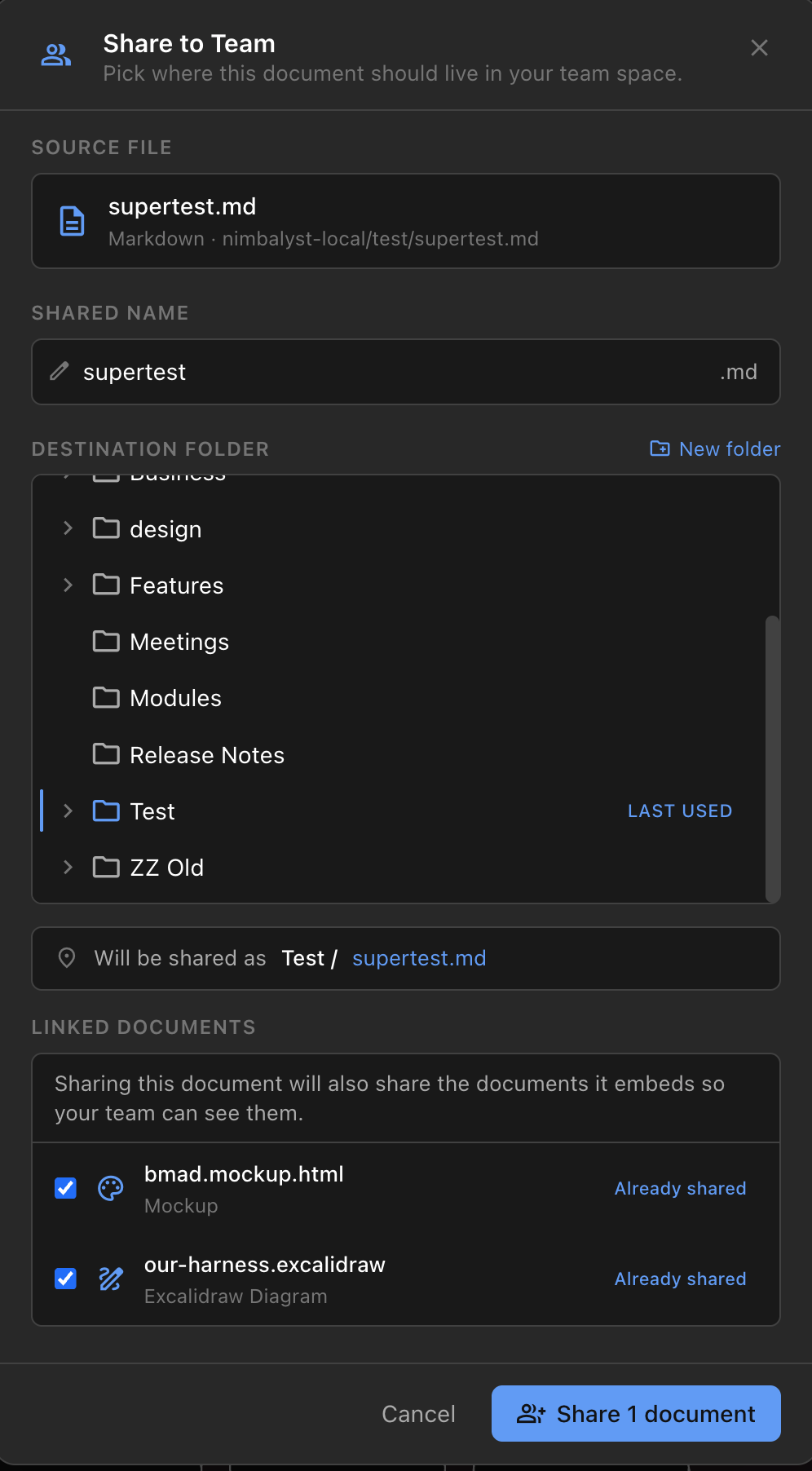
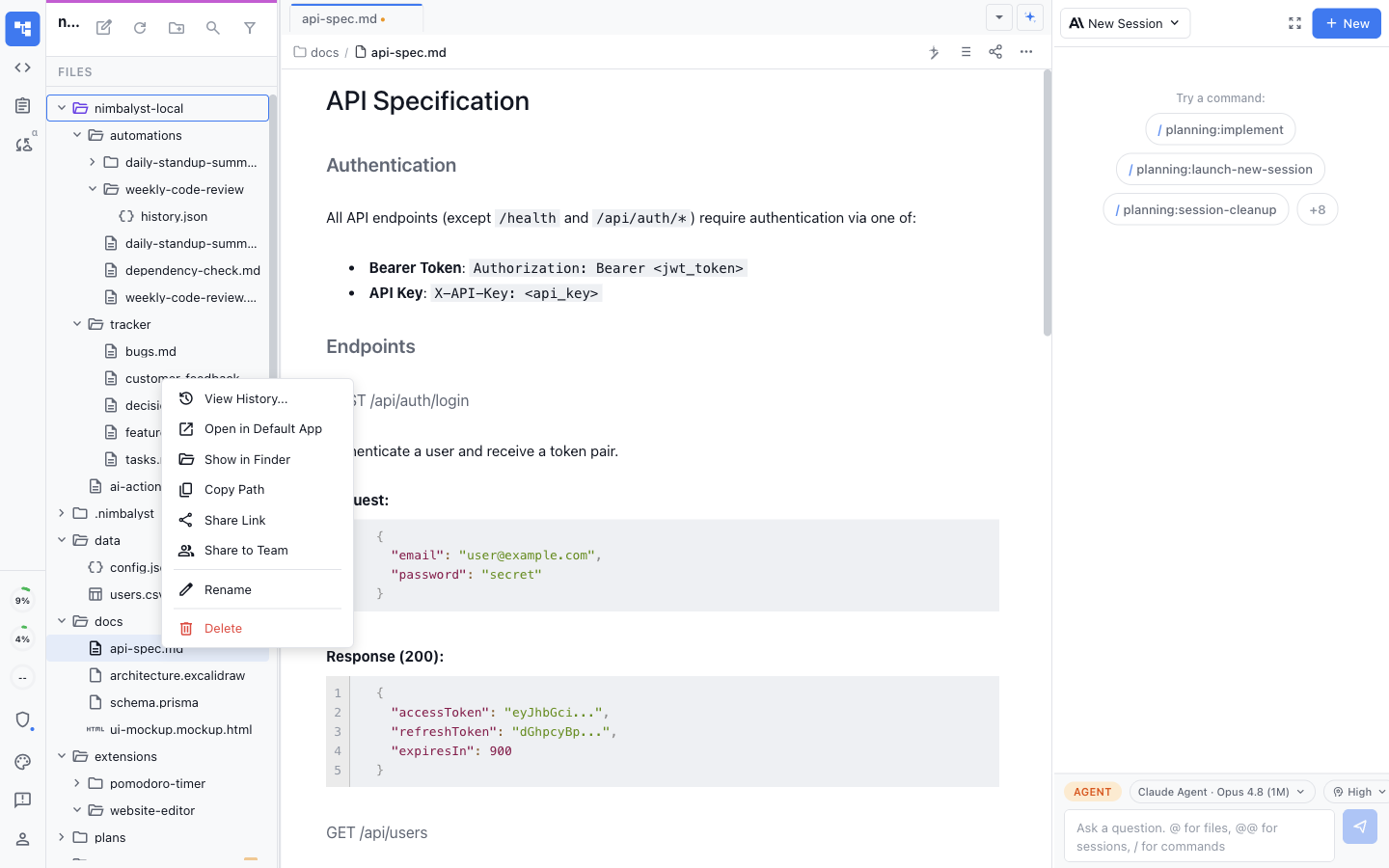
<figure><img src="/files/iMvhzBhUTD81kBfdjdjf" alt="The file context menu open on a document, with a Share to Team action"><figcaption><p>Start locally, then choose Share to Team when the file is ready for collaboration.</p></figcaption></figure>

1. In Files mode, right-click the local file.
2. Choose **Share to Team**.
3. Choose its shared name and destination folder.
4. Confirm **Share to Team**.

Only what you choose is shared. Your code and other local files remain on your machine. Nimbalyst keeps a link to the originating local file so you can open, relink, or re-upload it when needed.

The shared copy flows through Nimbalyst's Cloudflare sync service and is encrypted in transit and at rest. Teammates who return later receive the changes made while they were away and can continue with their own local agents.

### Work Offline

Previously opened shared documents open immediately from an encrypted local copy when the network is unavailable. You can continue editing text, supported visual content, and attachments while offline.

Nimbalyst keeps document changes and attachment uploads in a durable queue. When the device reconnects, it uploads the queued work and merges it with changes received from teammates. The queue survives a window or application restart.

Documents you have never opened still require a connection for their first download. An attachment that is not yet cached shows an unavailable placeholder until Nimbalyst can retrieve it.

### Discuss the work right where it lives

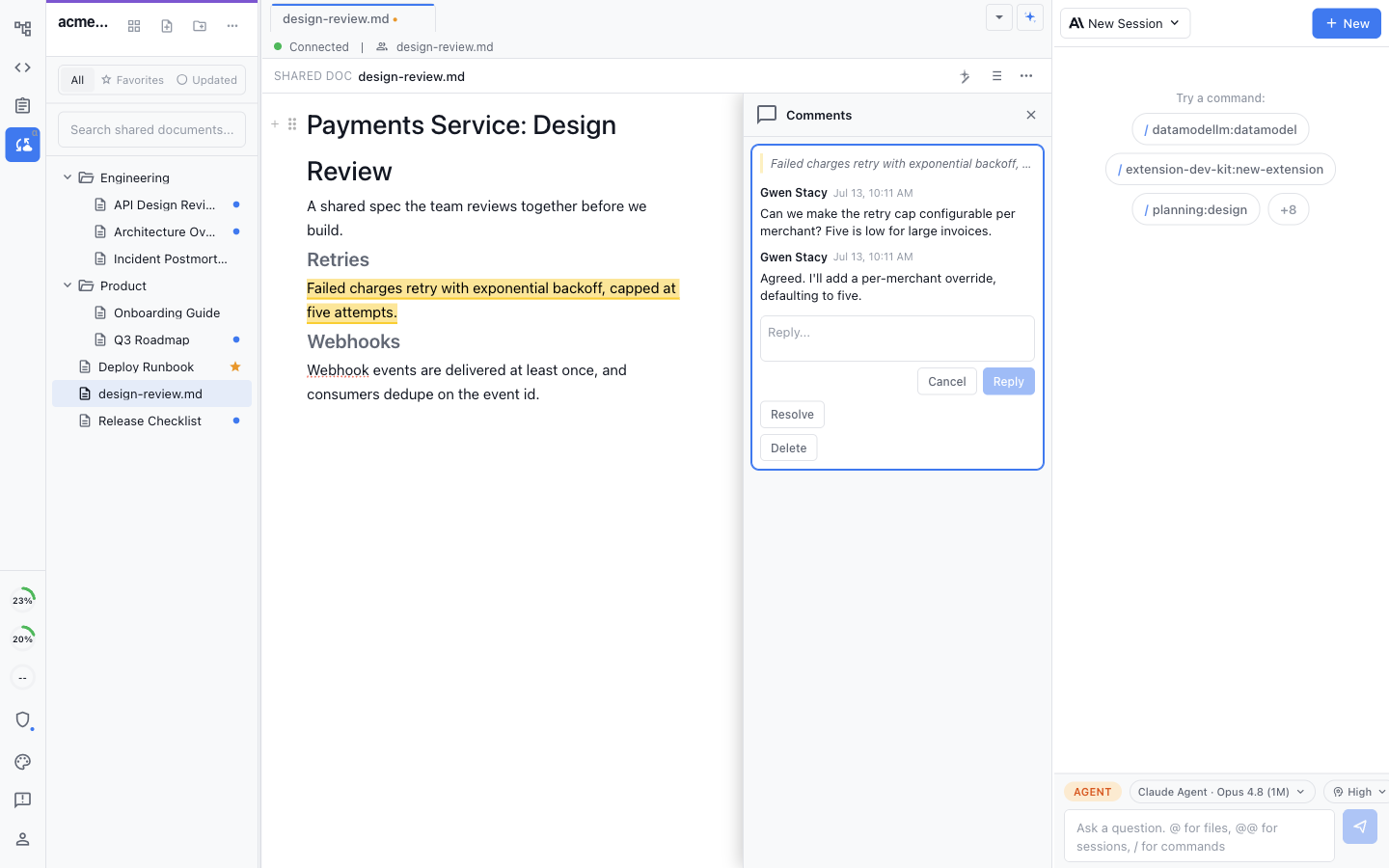
<figure><img src="/files/VrLFCPn2VxWxyEjEhwaU" alt="A shared document with a highlighted passage and a comment thread with a reply"><figcaption><p>Comments keep review feedback beside the exact passage being discussed.</p></figcaption></figure>

* **Comment in context:** Leave a comment on a passage or section so feedback sits next to the thing it is about.
* **Threads that resolve:** Reply, resolve, and reopen threads so review happens in the document instead of a separate chat.
* **Everyone stays in sync:** Comments sync in real time so the whole team sees the discussion as it happens.

### Never lose a version

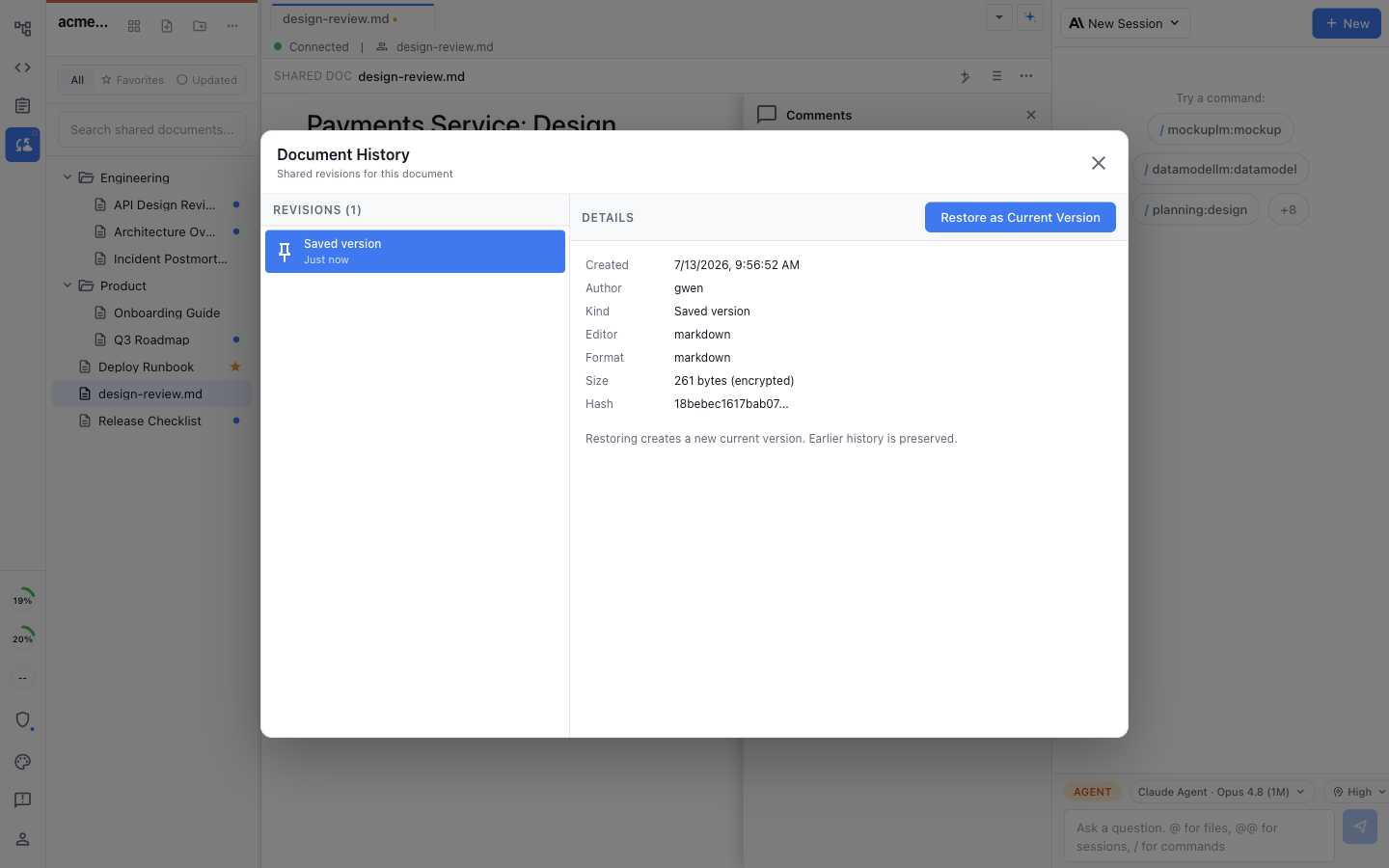
<figure><img src="/files/aqkr5VcvZj4l7D7pXu7H" alt="Document History for a shared document, showing a saved revision, its author and metadata, and a Restore as Current Version action"><figcaption><p>Review saved revisions and restore the one you need without leaving the shared document.</p></figcaption></figure>

* **Full change history:** Every shared document keeps its history so you can see how it changed and who changed it.
* **Restore in one click:** Roll a document back to an earlier version without leaving the editor.
* **Review before you trust:** Scan what changed since you last looked so nothing slips by unnoticed.

Right-click a document in the Collaboration sidebar and choose **View History**. Press **Cmd/Ctrl+S** in a shared document to save a revision.

### Favorites, and what changed since you were last here

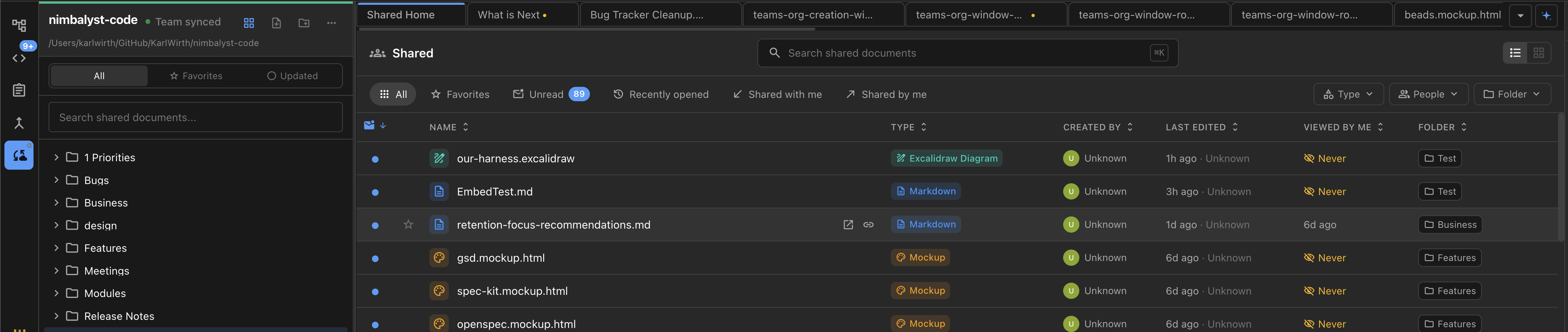
<figure><img src="/files/gEnmJLMVnW1N6ihJeT1i" alt="The shared documents hub with Favorites, recently changed documents, and the complete shared document list"><figcaption><p>Return to favorites and see what is new or recently updated across the team.</p></figcaption></figure>

* **Favorites:** Star the documents you keep coming back to and reach them from a Favorites list.
* **Changed since you were away:** A blue dot marks each shared document that changed since you last opened it.
* **New and recently updated:** Filter shared documents to what is new or recently updated, sorted by the last change.

The Collaboration sidebar also provides shared folders, search, drag-and-drop organization, and **All**, **Favorites**, and **Updated** filters.


---

# Agent Instructions
This documentation is published with GitBook. GitBook is the documentation platform designed so that both humans and AI agents can read, navigate, and reason over technical content effectively. Learn more at gitbook.com.

## Querying This Documentation
If you need additional information that is not directly available in this page, you can query the documentation dynamically by asking a question.

Perform an HTTP GET request on the current page URL with the `ask` query parameter, and the optional `goal` query parameter:

```
GET https://docs.nimbalyst.com/team-collaboration/documents.md?ask=<question>&goal=<endgoal>
```

`ask` is the immediate question: it should be specific, self-contained, and written in natural language.
`goal` is optional and describes the broader end goal you are ultimately trying to accomplish on behalf of the user. GitBook uses it to tailor the answer towards what is most useful for that goal.

The response will contain a direct answer to the question and relevant excerpts and sources from the documentation.

Use this mechanism when the answer is not explicitly present in the current page, you need clarification or additional context, or you want to retrieve related documentation sections.