> For the complete documentation index, see [llms.txt](https://docs.nimbalyst.com/llms.txt). Markdown versions of documentation pages are available by appending `.md` to page URLs; this page is available as [Markdown](https://docs.nimbalyst.com/visual-editors-powered-by-ai/canvas.md).

# Canvas

Project Canvas is an infinite board whose cards are live editors for real files. Lay out a plan, a diagram, and a flow of mockups side by side and edit any of them in place.

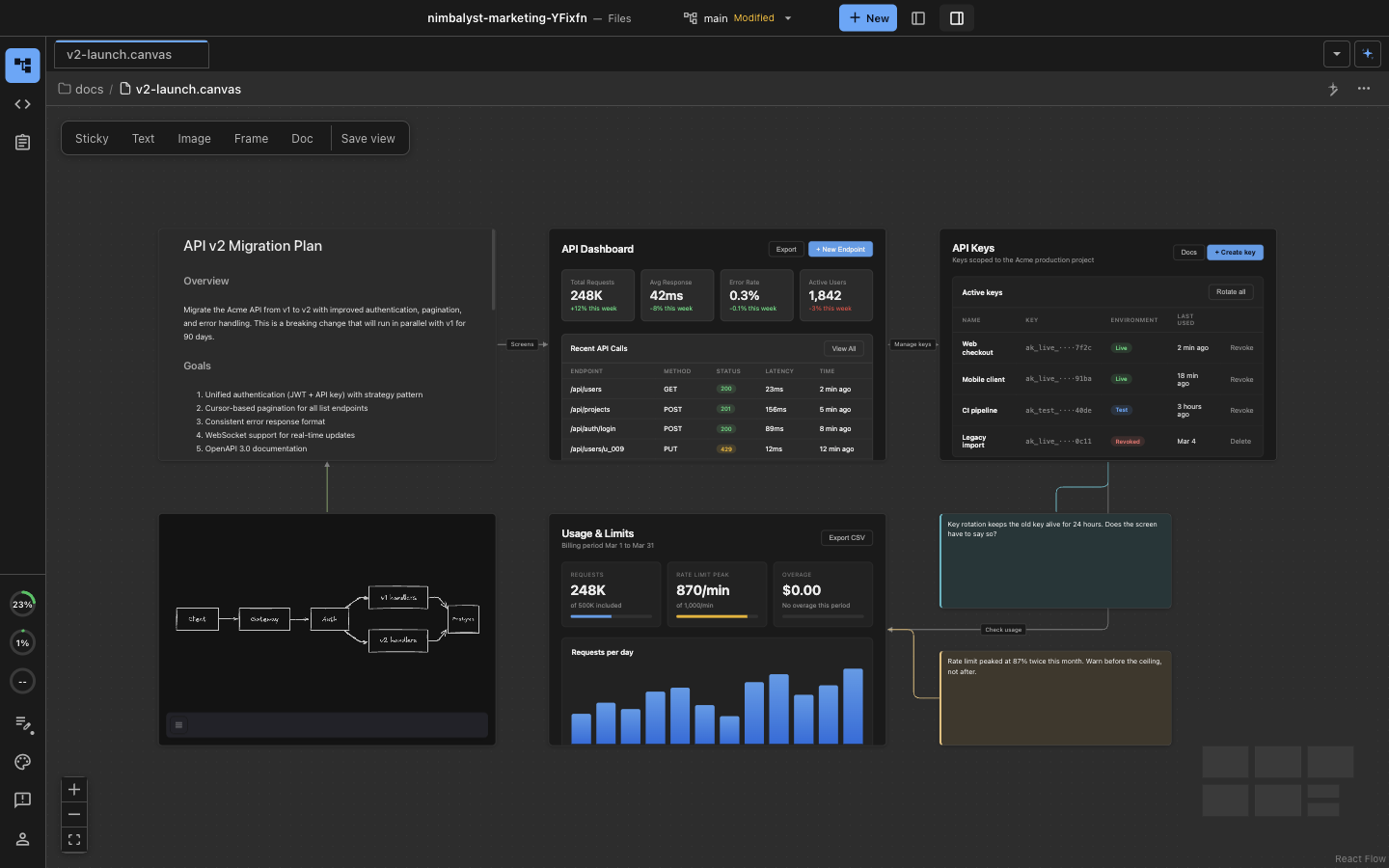
Nimbalyst Project Canvas is an infinite board for `.canvas` files. Every card on it mounts a working editor for a file in your project: a mockup card renders the mockup, a diagram card renders the diagram, and a markdown card renders the document. Cards are live, not screenshots or thumbnails.

Use a canvas when the arrangement is the point: the screens of a flow in order, the documents in a workstream, a design review board, or a project overview that mixes several kinds of file at once.

<figure><img src="https://562749618-files.gitbook.io/~/files/v0/b/gitbook-x-prod.appspot.com/o/spaces%2FiVUeHZHlFlZrZt02syRC%2Fuploads%2Fgit-blob-a4b252966fc44dc86b8a094503e3f34b7f8c3cc3%2Feditor-canvas.png?alt=media" alt="A Project Canvas board showing a markdown plan, an Excalidraw architecture diagram, and three UI mockups laid out as a flow, wired together with labelled arrows and annotated with two sticky notes"><figcaption><p>One board holding a plan, a diagram, three mockups, and the open questions about them. Every card is the live editor for that file.</p></figcaption></figure>

## What Goes on a Board

* **File cards** mount any file type Nimbalyst has an editor for: markdown, mockups, Excalidraw, mind maps, data models, spreadsheets, CSV, code
* **Shared document cards** point at a document your team already shares, so the board works for everyone who has access
* **Sticky notes** for the questions and decisions that belong next to the work rather than inside it
* **Text and image cards** for headings, captions, and reference images
* **Frames** to group a set of cards under a label and move them together
* **Arrows** between cards, with labels, to show the order the screens run in or what depends on what

## Editing in Place

Click into a card and you are editing the file itself. Save from inside the card and the change lands in the file on disk, and every other place that file appears updates with it: the tab you had open, another board pointing at the same path, and any document that embeds it.

Cards mount their editor when the board is zoomed in far enough to read them, and fall back to a lightweight summary when it is not. A board with thirty cards on it stays responsive because only the cards you are actually looking at are running.

**Save view** stores the current position and zoom as the board's starting view, so everyone who opens it lands where you meant them to. Your own scroll position is remembered separately.

## Plain-Text Files

A board is a `.canvas` file in your project, stored as JSON. It is a superset of the [JSON Canvas](https://jsoncanvas.org/) open format: every field from the spec keeps its spec meaning, Nimbalyst's additions live under a namespaced key, and anything a board written by another tool carries is preserved when Nimbalyst saves it.

Boards therefore sit in your repository with everything else, sync like other files, and show up in a pull request as a readable diff.

## Working with AI

Your agent can author and rearrange boards. Because a card points at a workspace path, an agent can also create the underlying files and put them on the board in one pass.

* "Make a canvas of the checkout flow with the three mockups in `design/`."
* "Build a board for this workstream: the plan, the schema, and the two mockups it refers to."
* "Add the confirmation screen to the board after the payment screen."
* "Put a sticky note next to the payment card with the open question about wallets."
* "Draft three homepage variants as mockups and lay them out on a canvas side by side."

## Canvas, Excalidraw, or a Mockup?

| Use                                                           | When                                                                      |
| ------------------------------------------------------------- | ------------------------------------------------------------------------- |
| **Canvas**                                                    | You want several existing files arranged in space and still editable      |
| [**Excalidraw**](/visual-editors-powered-by-ai/excalidraw.md) | You want to draw: architecture sketches, freeform diagrams, whiteboarding |
| [**Mockups**](/visual-editors-powered-by-ai/mockups.md)       | You want to design a single screen                                        |


---

# Agent Instructions
This documentation is published with GitBook. GitBook is the documentation platform designed so that both humans and AI agents can read, navigate, and reason over technical content effectively. Learn more at gitbook.com.

## Querying This Documentation
If you need additional information that is not directly available in this page, you can query the documentation dynamically by asking a question.

Perform an HTTP GET request on the current page URL with the `ask` query parameter, and the optional `goal` query parameter:

```
GET https://docs.nimbalyst.com/visual-editors-powered-by-ai/canvas.md?ask=<question>&goal=<endgoal>
```

`ask` is the immediate question: it should be specific, self-contained, and written in natural language.
`goal` is optional and describes the broader end goal you are ultimately trying to accomplish on behalf of the user. GitBook uses it to tailor the answer towards what is most useful for that goal.

The response will contain a direct answer to the question and relevant excerpts and sources from the documentation.

Use this mechanism when the answer is not explicitly present in the current page, you need clarification or additional context, or you want to retrieve related documentation sections.
