> For the complete documentation index, see [llms.txt](https://docs.nimbalyst.com/llms.txt). Markdown versions of documentation pages are available by appending `.md` to page URLs; this page is available as [Markdown](https://docs.nimbalyst.com/visual-editors-powered-by-ai/csv.md).
# CSV
Open CSV and TSV files in the built-in Nimbalyst spreadsheet editor, edit rows and columns visually, and let your AI agent work the same data.
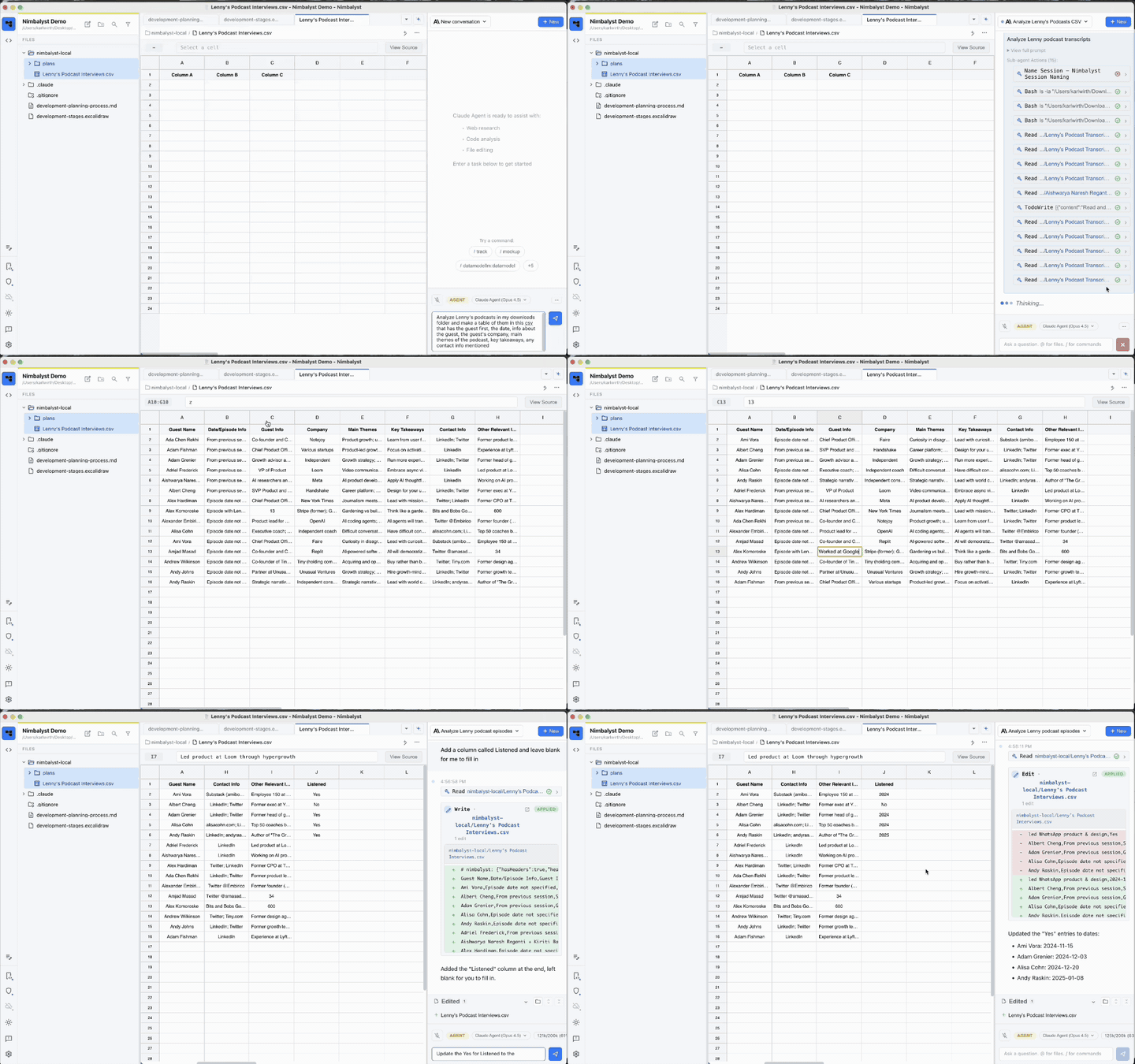
Nimbalyst includes a built-in spreadsheet editor for CSV and TSV files. Open any `.csv` or `.tsv` file and it automatically displays in a familiar spreadsheet interface.
See the [spreadsheets feature page](https://nimbalyst.com/features/spreadsheets/) for how agents work with tabular data in a project.
If you want a calculation-first document instead of a row-and-column data grid, use a [Calc Sheet](/visual-editors-powered-by-ai/calc-sheets.md) with the `.calc.md` extension.
### CSV Spreadsheet Editor
The editor works like a familiar spreadsheet. You can:
* Edit, add, and delete cells, rows, and columns
* Cut, copy, paste, undo, and redo ranges
* Write formulas with cell references and see results update live
* Find and replace values, sort columns, and filter rows
* Freeze rows and columns
* Set typed columns for numbers, currency, percentages, dates, checkboxes, links, and tracker items
* Format selected cells with text styles, colors, and alignment
Click **View Source** in the toolbar to toggle between the spreadsheet view and raw CSV text.
Formatting, column types, filters, and frozen panes need metadata that CSV itself cannot represent. Depending on the project setting, Nimbalyst stores that metadata in an inline CSV comment or a separate `.csvmeta` sidecar file. The cell values and formulas remain in the CSV or TSV.
### Using Coding Agents with CSV Files
Your coding agent can read and modify your CSV files directly. This is powerful for data tasks that would be tedious to do manually.
**Data Cleaning**
* "Remove all duplicate rows from data.csv"
* "Fix the date format in the 'created\_at' column to YYYY-MM-DD"
* "Trim whitespace from all cells in customers.csv"
**Data Transformation**
* "Add a new column that calculates the total from price and quantity"
* "Split the 'full\_name' column into 'first\_name' and 'last\_name'"
* "Convert all country codes to full country names"
**Analysis & Filtering**
* "Remove all rows where status is 'cancelled'"
* "Sort by revenue descending and keep only the top 100"
* "Find and flag any rows with missing email addresses"
**Bulk Operations**
* "Add 'USD' prefix to all values in the currency column"
* "Replace all instances of 'N/A' with empty cells"
* "Normalize phone numbers to +1-XXX-XXX-XXXX format"
**Generating Data**
* "Create a CSV with 50 sample customer records for testing"
* "Add a header row with appropriate column names"
#### How It Works
When you ask your coding agent to modify a CSV file, it reads the file, makes the changes programmatically, and writes the updated content back. The spreadsheet editor will automatically refresh to show your changes.
#### AI Changes as Red / Green Diff
Agent edits appear as a red/green diff. The grid stays read-only until you accept or reject the pending change, which prevents a manual cell edit from being mixed into the review.
---
# Agent Instructions
This documentation is published with GitBook. GitBook is the documentation platform designed so that both humans and AI agents can read, navigate, and reason over technical content effectively. Learn more at gitbook.com.
## Querying This Documentation
If you need additional information that is not directly available in this page, you can query the documentation dynamically by asking a question.
Perform an HTTP GET request on the current page URL with the `ask` query parameter, and the optional `goal` query parameter:
```
GET https://docs.nimbalyst.com/visual-editors-powered-by-ai/csv.md?ask=&goal=
```
`ask` is the immediate question: it should be specific, self-contained, and written in natural language.
`goal` is optional and describes the broader end goal you are ultimately trying to accomplish on behalf of the user. GitBook uses it to tailor the answer towards what is most useful for that goal.
The response will contain a direct answer to the question and relevant excerpts and sources from the documentation.
Use this mechanism when the answer is not explicitly present in the current page, you need clarification or additional context, or you want to retrieve related documentation sections.